Presentation
The LAHOCO mobile app allows users to connect remotely to their home automation system seamlessly thanks to LAHOCO SMART CONNECT. Users can manage and control various aspects of their home, such as lighting, heating, and connected devices, directly from their iOS or Android smartphone or tablet.
The app’s main features include:
-
Remote connection : Access your smart home automation system from anywhere
-
Devices management : Control and configure your connected devices
-
Intuitive user interface : Enjoy simple and smooth navigation for easy management of your connected home
Downloading the app
The app is available free of charge on iOS and Android systems.
Logging in to the application
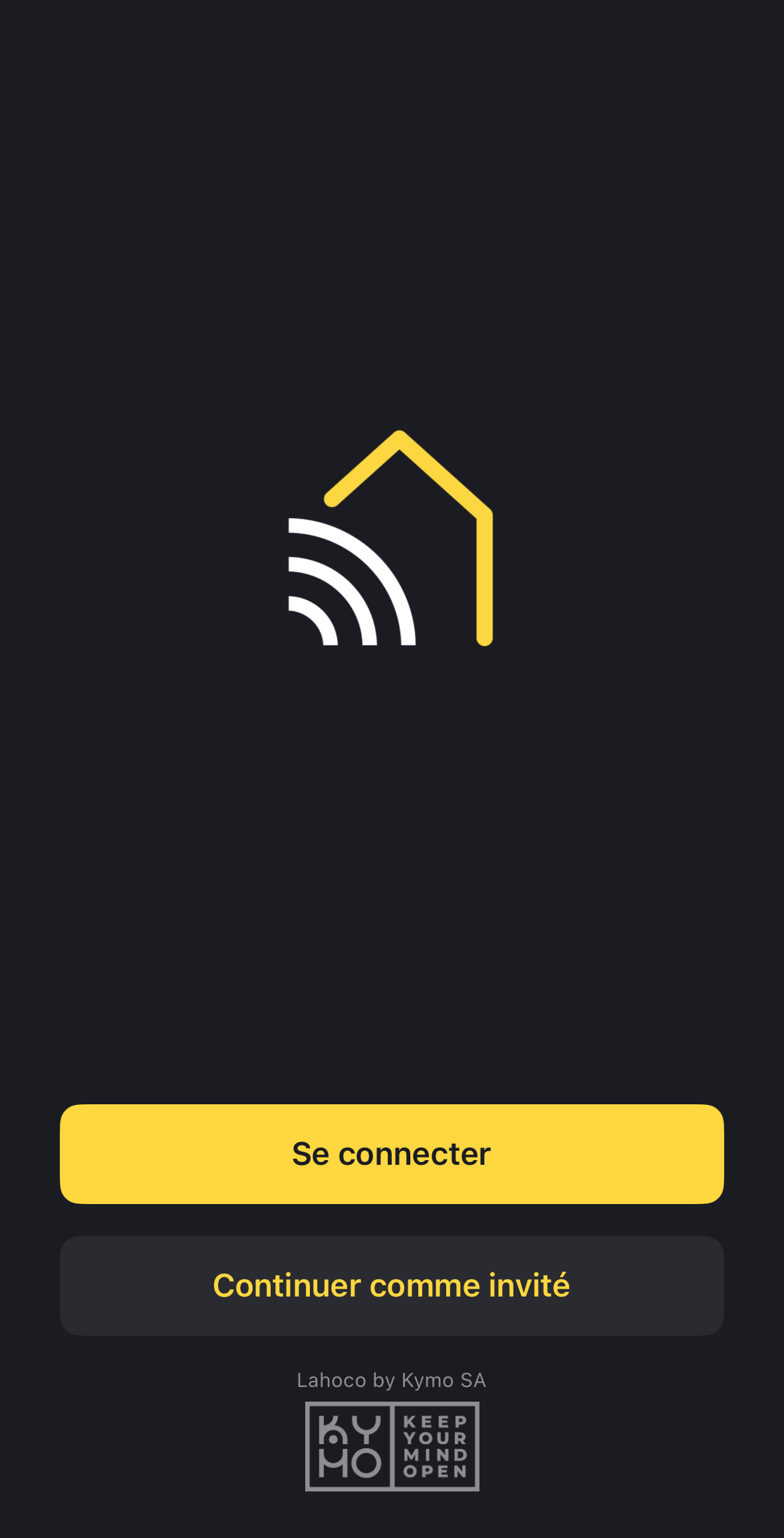
You need a myLAHOCO account to log in to the application. If you do not yet have an account, please visit Create a myLAHOCO account .
It is also possible to continue as a guest. (see section below)
My installations
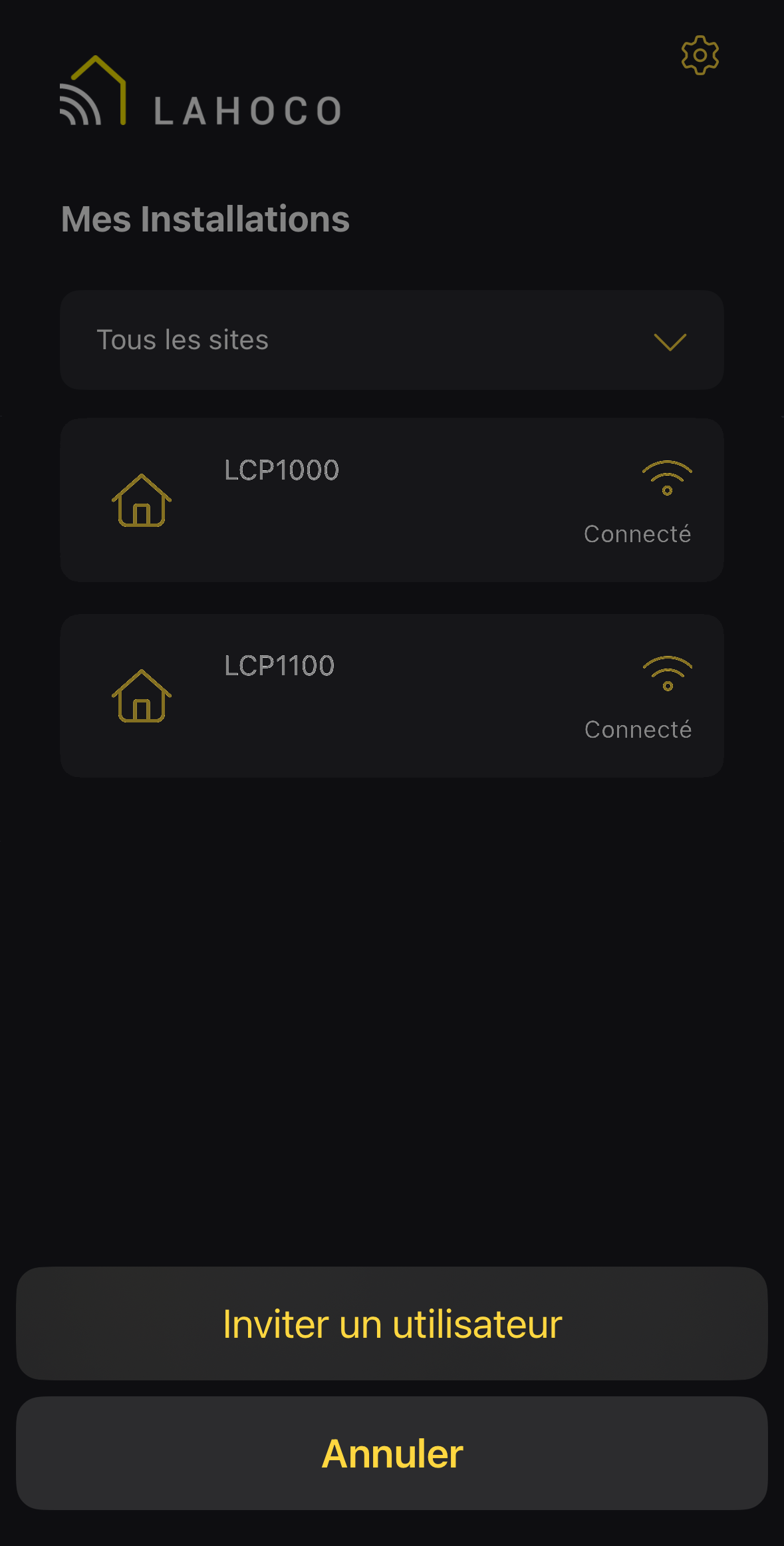
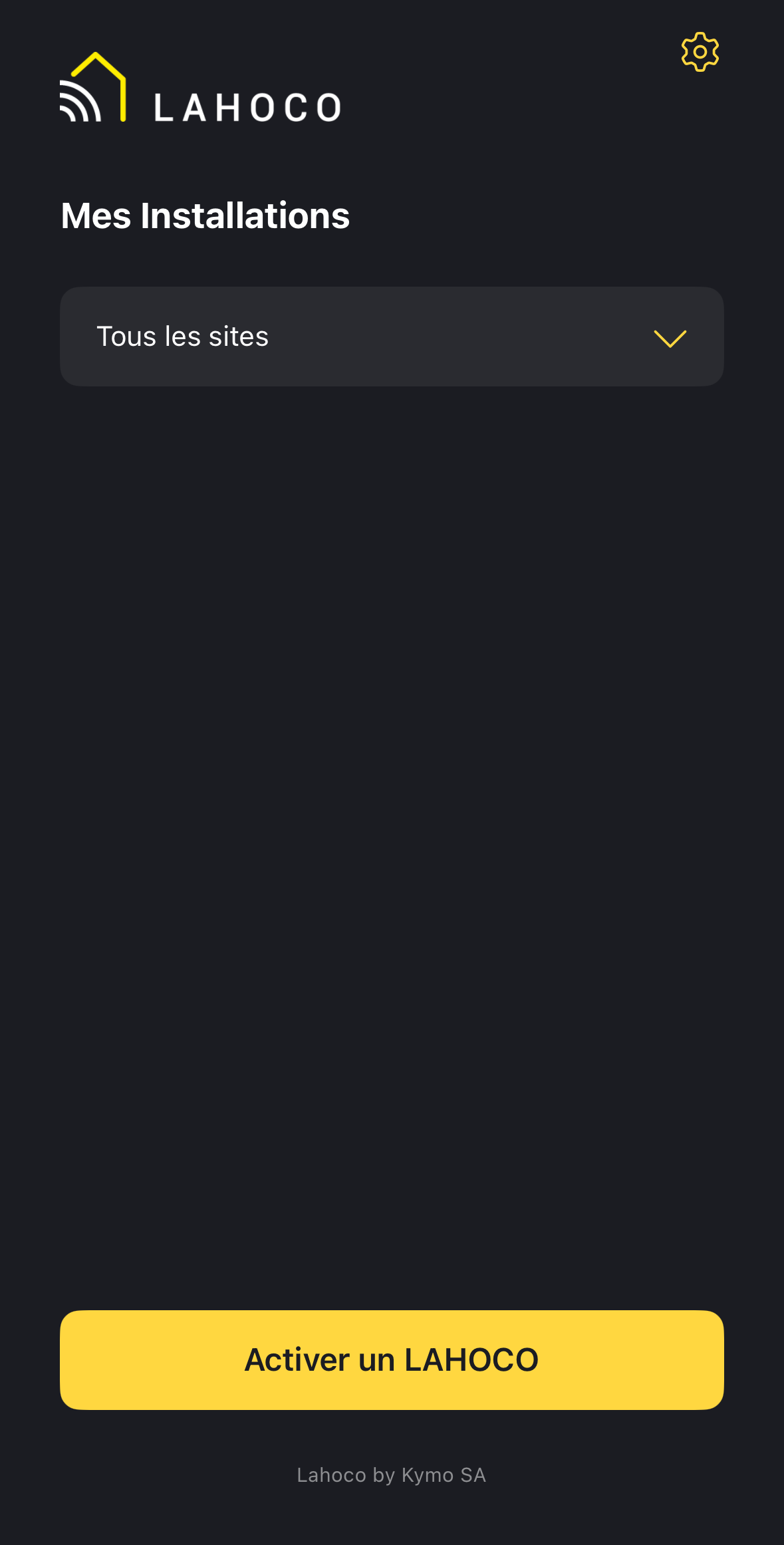
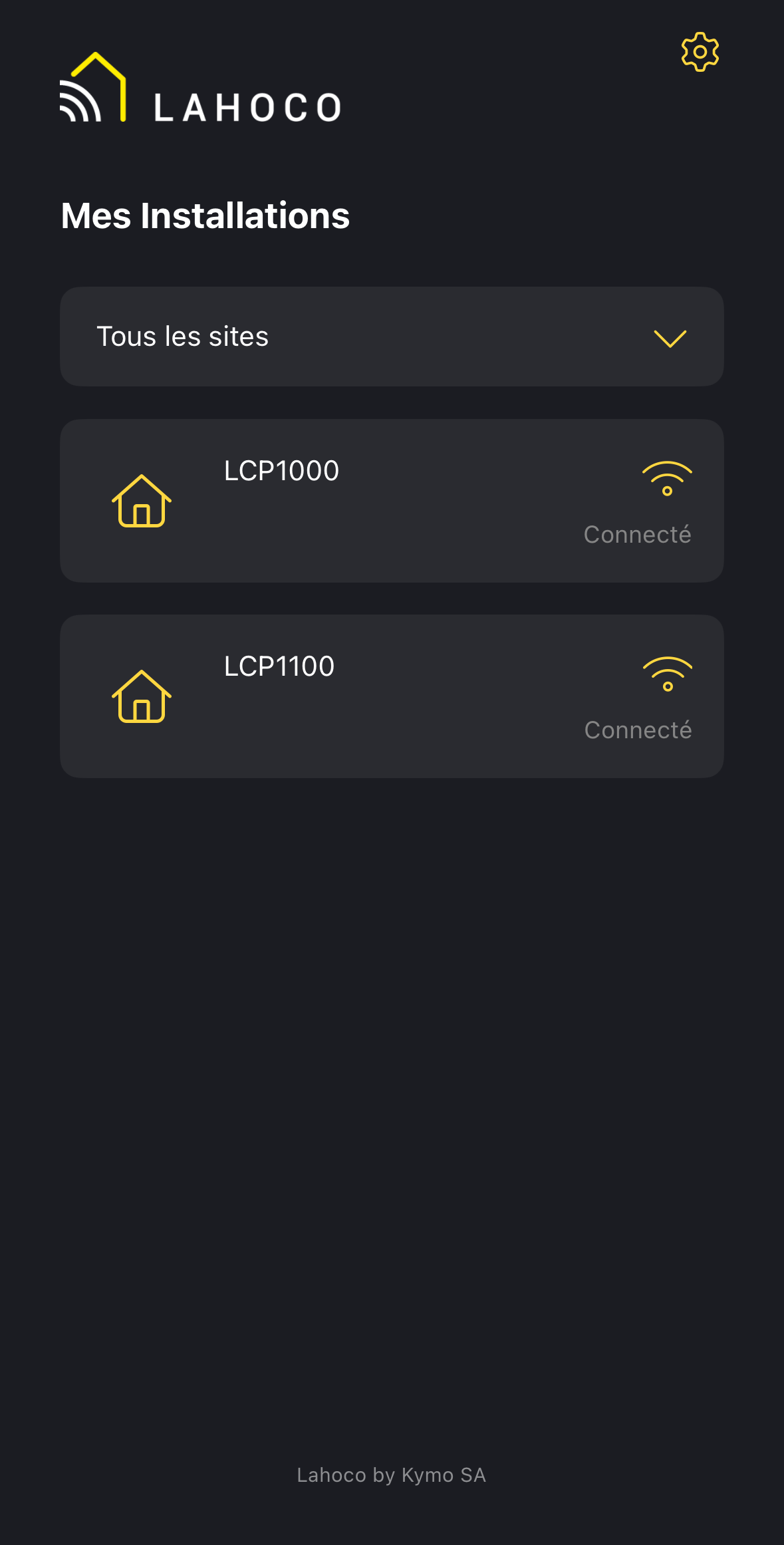
Once logged in, the home page provides access to the LAHOCO CORE installations available for this account. If no installations are displayed, it is possible to activate a new one (See the Activation page).
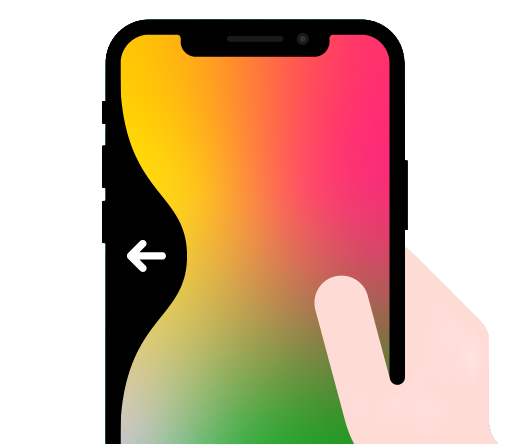
Once a LAHOCO installation is open, you can return to the application’s home screen at any time by swiping back.
Connection types
there are two types of connection, indicated by the icon on the right.
The connection is automatically prioritized as soon as the phone is located in the same network as the LAHOCO CORE.

The connection used for remote access when the phone is not on the same network as the LAHOCO CORE.
The LAHOCO CORE must have Internet access to communicate with the outside world.
The application automatically adjusts the connection type according to the environment, favoring a local connection.
Guest login
Guest login allows access to devices located on the same Wi-Fi network as the phone. This type of connection is useful for guests, or for devices that always remain on the same IP network as the LAHOCO CORE, such as wall-mounted tablets.
No myLAHOCO is required for this type of connection. However, the owner will need to create a local account for their installation. See the relevant section on Users settings
Mobile app settings
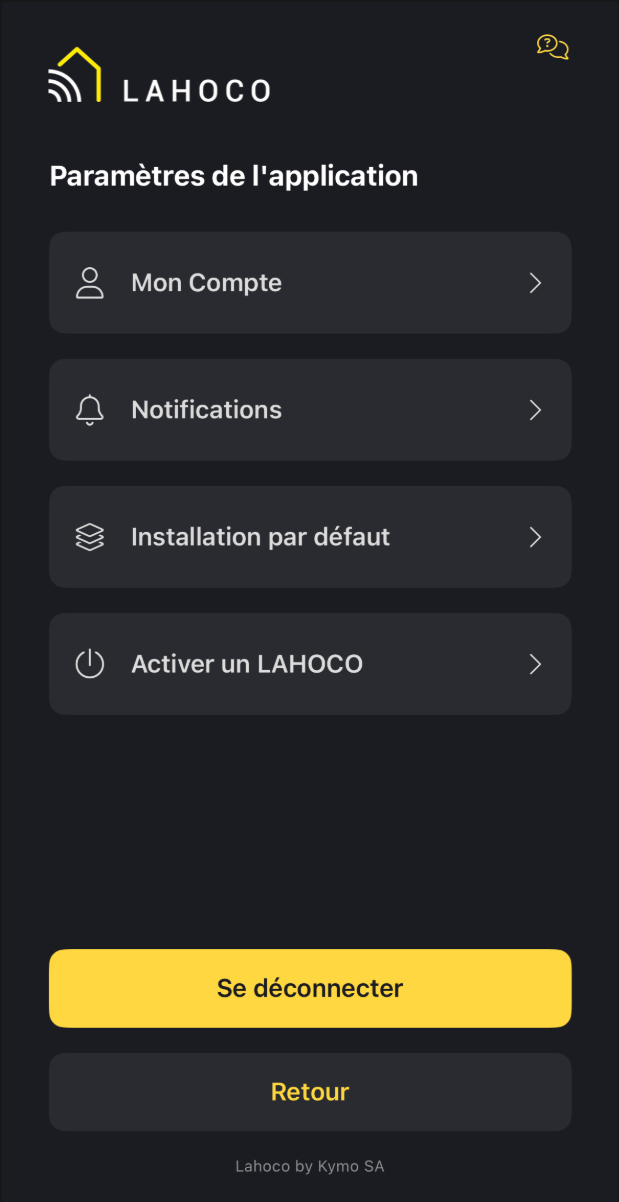
The app settings can be accessed via the gear icon in the top right-hand corner. ⚙️
The following settings are available :
-
Account settings (first name, last name, language)
-
Notifications preferences
-
Default installation preference when launching the app
-
Activation of a new LAHOCO installation
LAHOCO is available via the yellow icon in the top right corner.
Inviting users from the mobile app
As the owner of a LAHOCO installation, you can invite new users to join the installation.
To do so, simply press and hold an installation, then click on Invite a user.
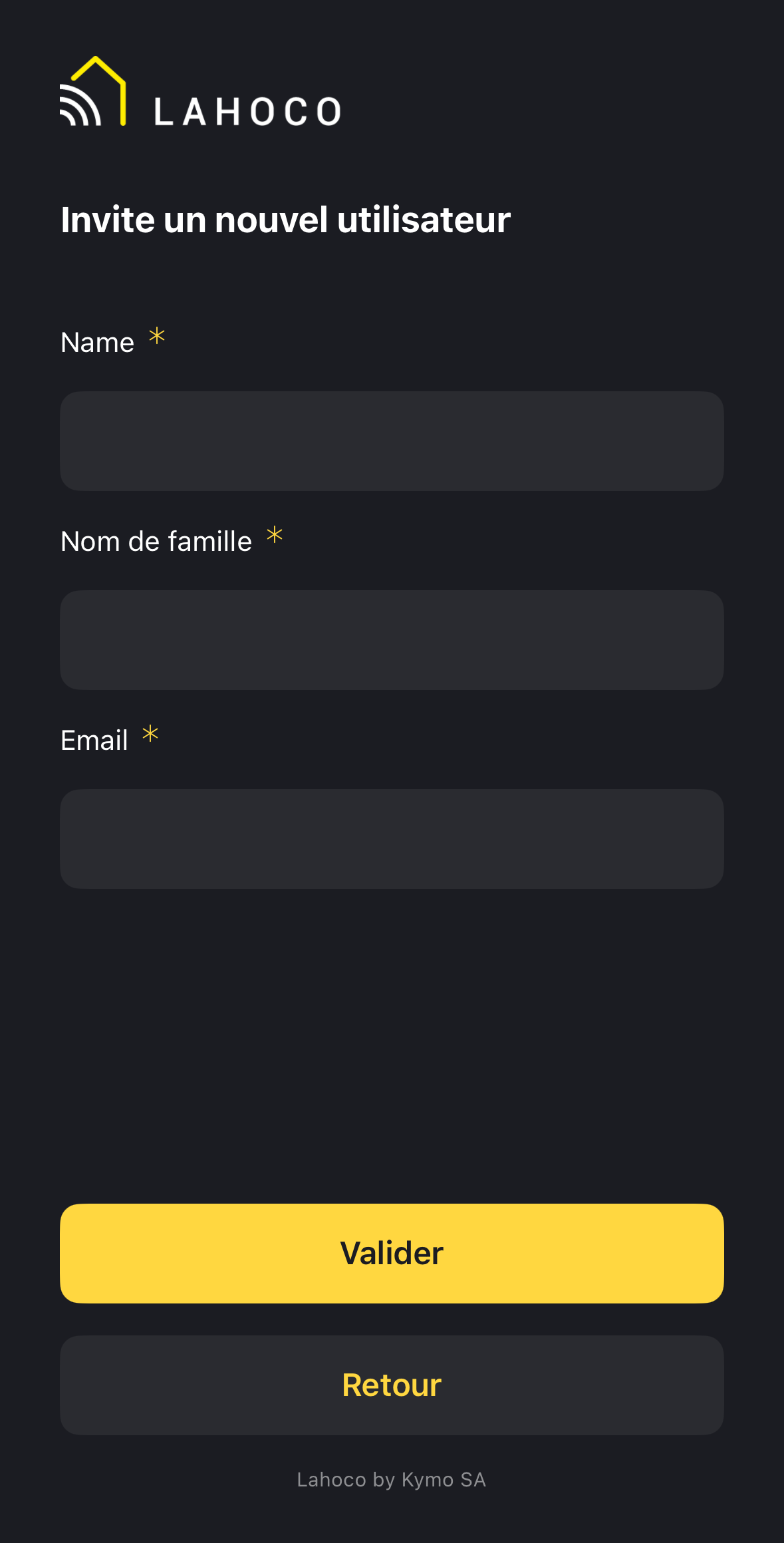
Next, enter the new user’s contact details. The new user will receive an invitation by email. One accepted, they will have access to the installation.
If the new user does not yet have a myLAHOCO account with the specified email address, they will receive an invitation to create an account.