Prerequisites
Here are the prerequisites for activation LAHOCO :
-
The LAHOCO CORE module (LCD ou LCP) is powered
-
A wired Internet connection (Ethernet RJ-45) is connected to the LAHOCO CORE
-
An iOS/Android mobile device (preferred solution) OR a web browser with an Internet connection, on the same network as the LAHOCO CORE
Activate my LAHOCO CORE
Two activation methods are available.
-
https://lahoco.atlassian.net/wiki/spaces/LAHDOC/pages/455737345/5.8-en+Activation#With-the-mobile-app (preferred method)
-
https://lahoco.atlassian.net/wiki/spaces/LAHDOC/pages/455737345/5.8-en+Activation#With-a-web-browser
With the mobile app
Once your LAHOCO CORE is connected to the network (RJ-45 socket) and powered on :
-
Log in with a myLAHOCO account. See Create a myLAHOCO account if you do not yet have an account.
-
Press Activate a LAHOCO
If you already have a LAHOCO installation open in you mobile app, go to settings and select Log out to return to the list of installations.
If the yellow Activate a LAHOCO button does not appear, go to the settings page (gear icon in the top right corner) and select Activate a LAHOCO.

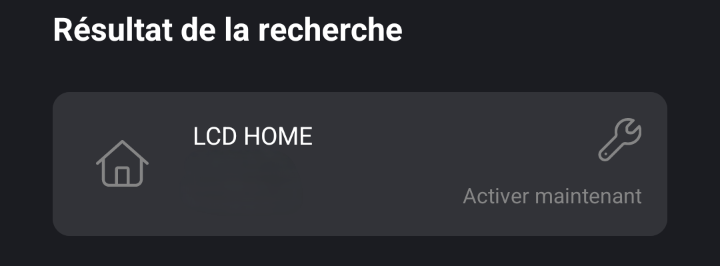
4. Select the LAHOCO CORE you want to activate
If your LAHOCO CORE does not appear, check that your iOS/Android device is on the same network as your LAHOCO CORE.
You can also manually select a LAHOCO CORE via its IP address using the Search by IP button.
-
Proceed with activation by filling in the Name of the installation and the Address of the building where your LAHOCO CORE is located. The advanced configuration allows you to manually create your own Site, Building and Lot. You can modify these informations later via myLAHOCO.
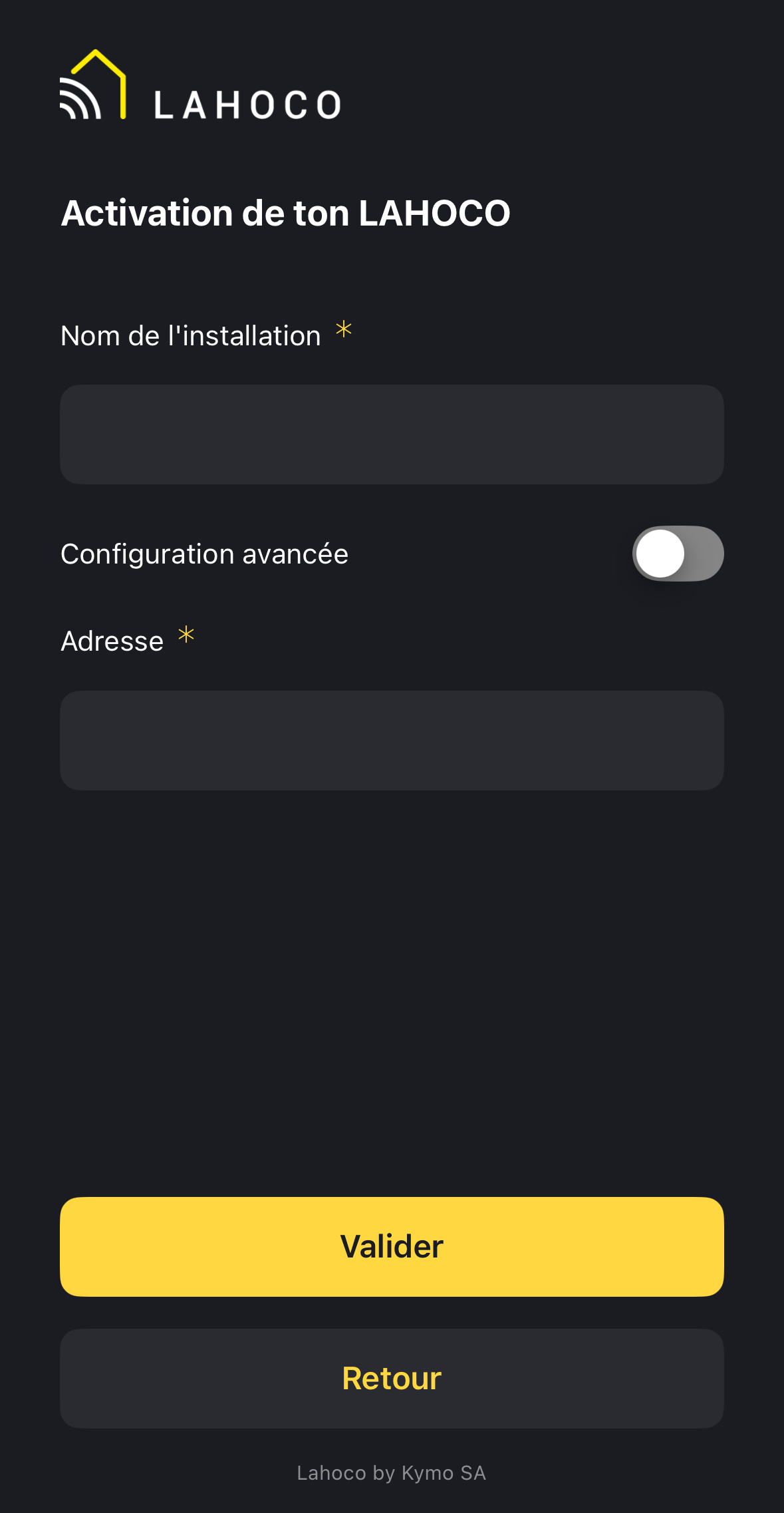
This address will be used to display the weather on the home page.
-
Confirm your activation. Activation may take several minutes while your LAHOCO CORE stars up with the necessary services.
-
Once activation is complete, your LAHOCO will be availible in the main list of your application.
With a web browser
Once your LAHOCO CORE is connected to the network (RJ-45 socket) and powered on:
-
Go to myLAHOCO with your favorite browser
-
Log in with an existing myLAHOCO account, or create a new account. See Create a myLAHOCO account if you do not yet have an account.
-
To activate your LAHOCO, you must first create a site, a building and a lot. If you have already configured this, skip to step 7.
-
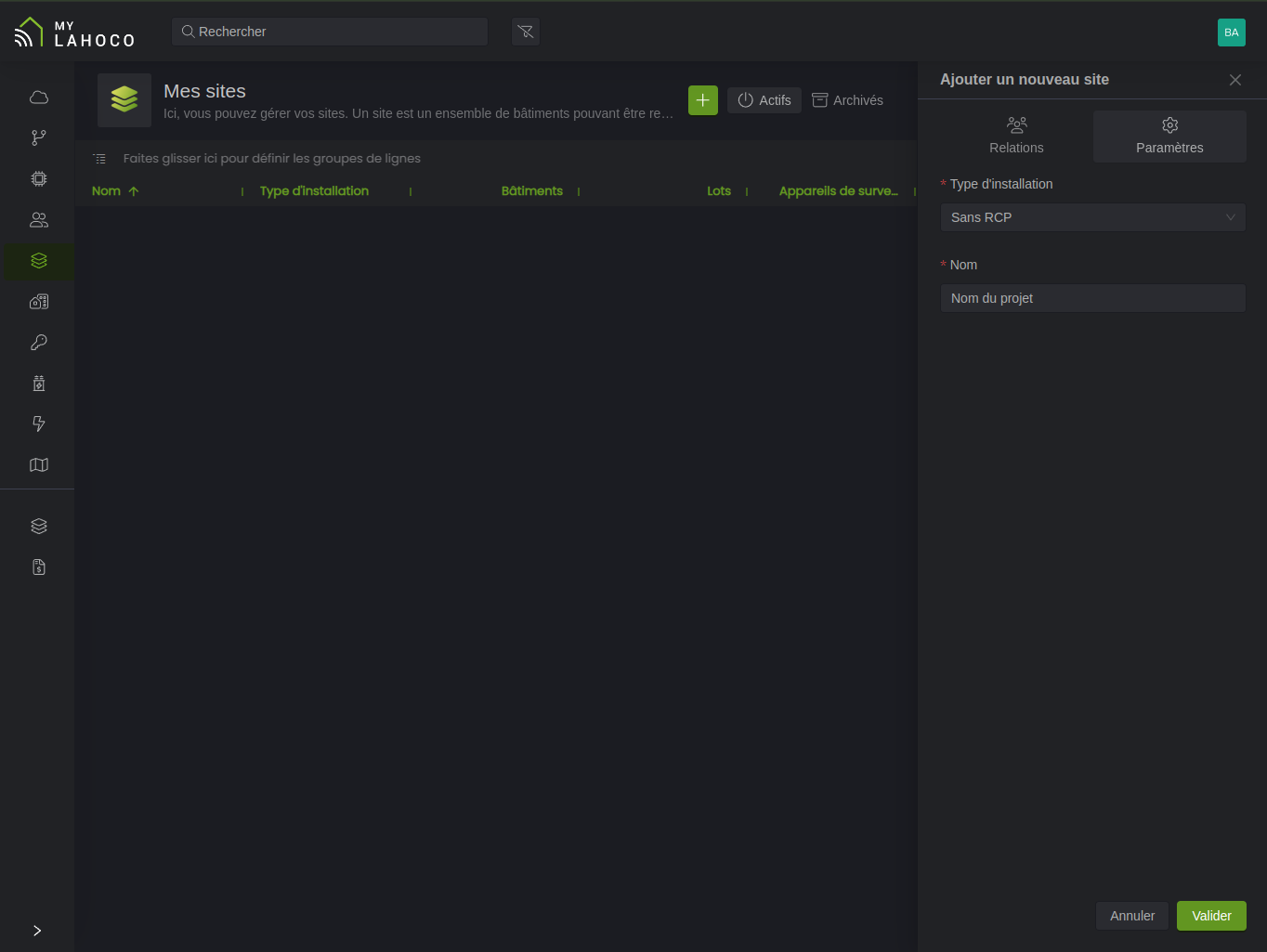
Navigate to the My sites in the menu and click
to create a new site. Enter a type of installation (Without RCP or with RCP) and a name, then click Validate.
-
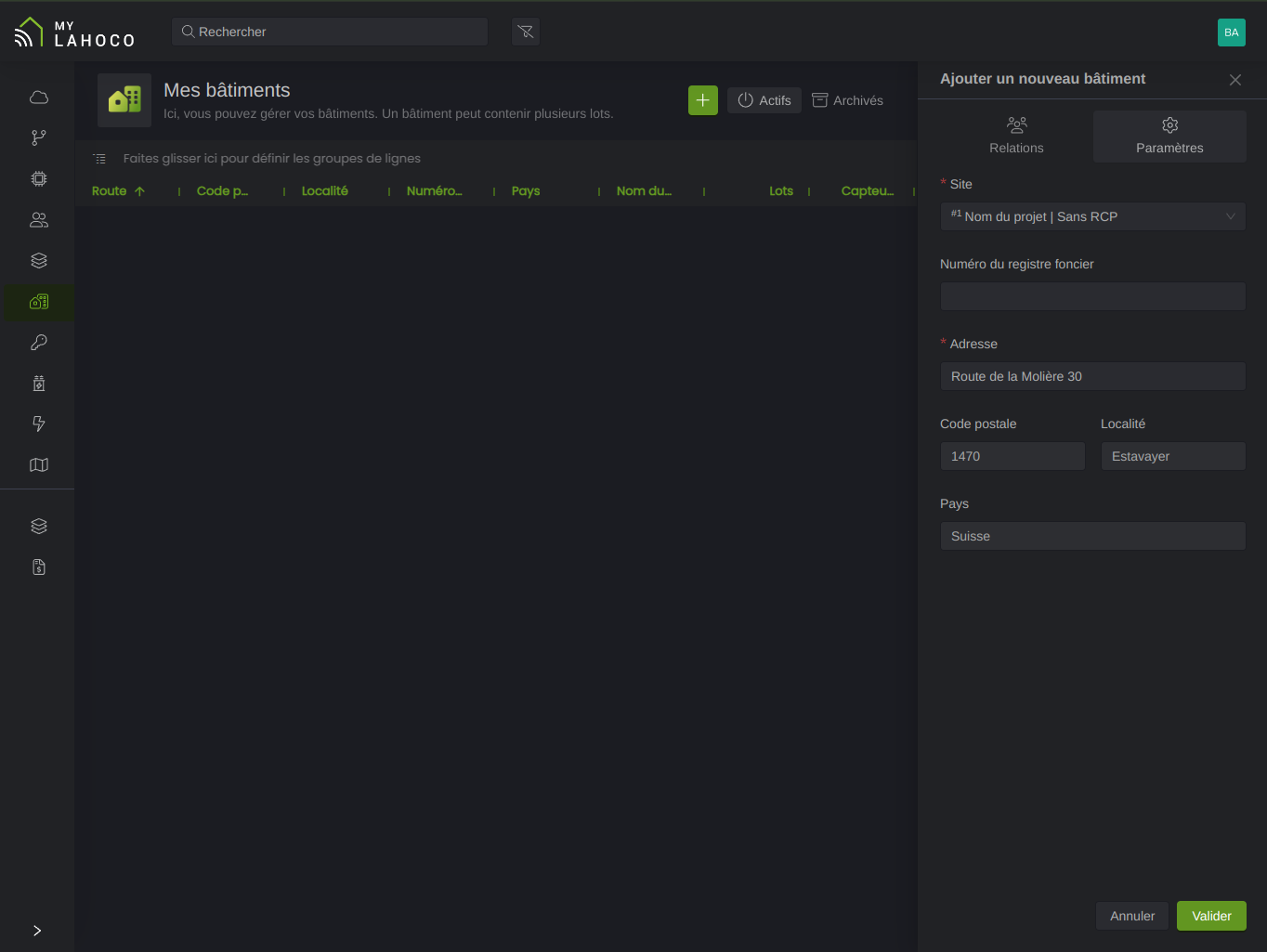
Navigate to the My buildings page in the left-hand menu and click
The address indicated here is used to display the wather on the LAHOCO HOME homepage.
-
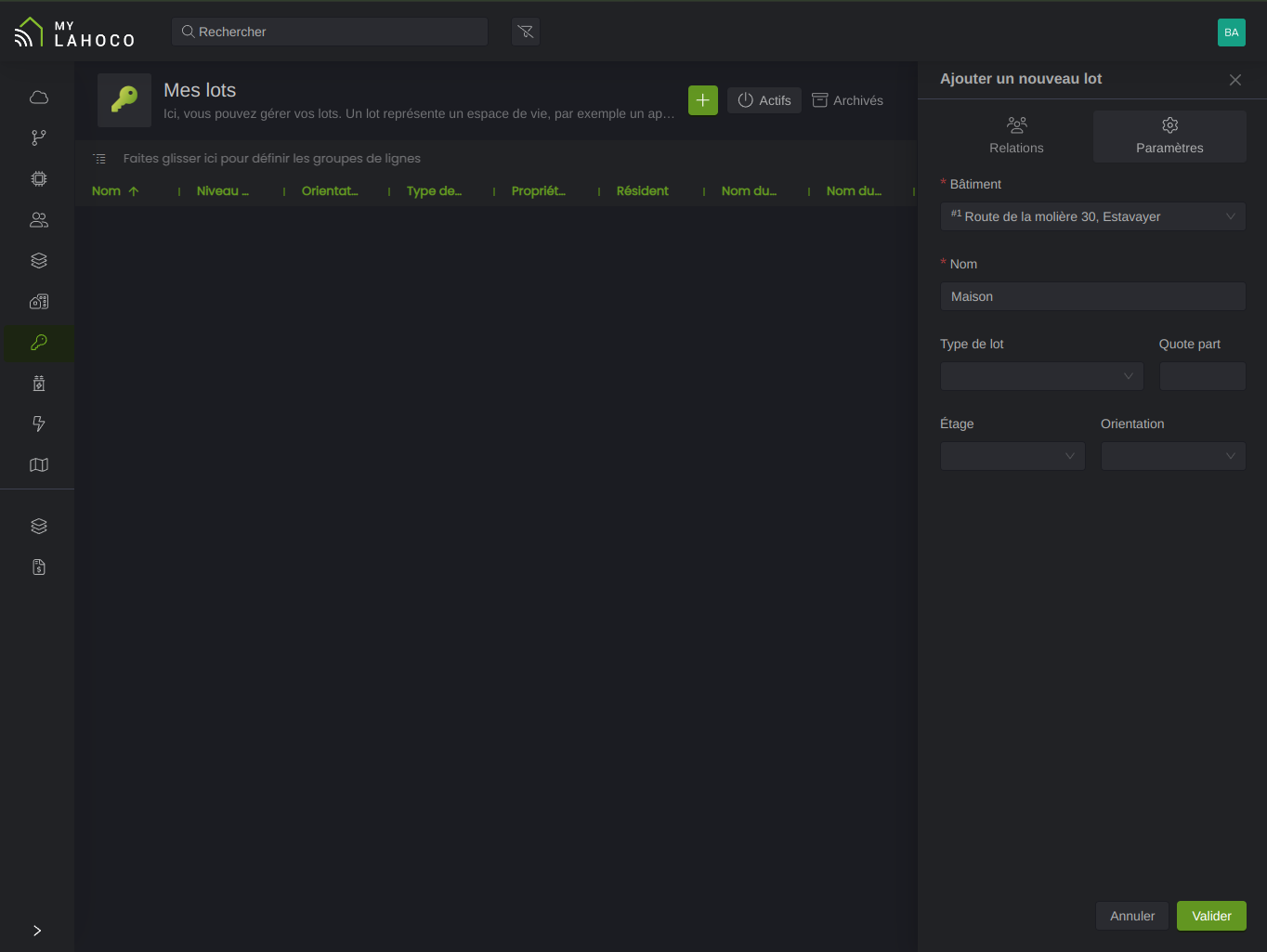
Navigate to the My lots page in the left-hand menu and click
-
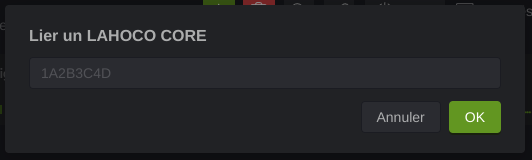
Navigate to the My lots page in the left-hand menu and select the lot on which you want to register your LAHOCO CORE. Click on the Link a CORE 🔗 icon at the top, enter the serial number of the LAHOCO CORE then click OK.
The serial number consisting of 8 uppercase characters is printed on your LAHOCO CORE
-
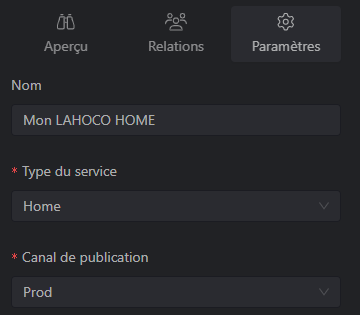
Define a name, a CORE service type, and the Prod publication channel on the right panel if it is not already configured.
-
Wait a few minutes and your LAHOCO CORE will activate automatically !
The activation time is approximately 10 minutes, depending on the speed of your Internet connection.