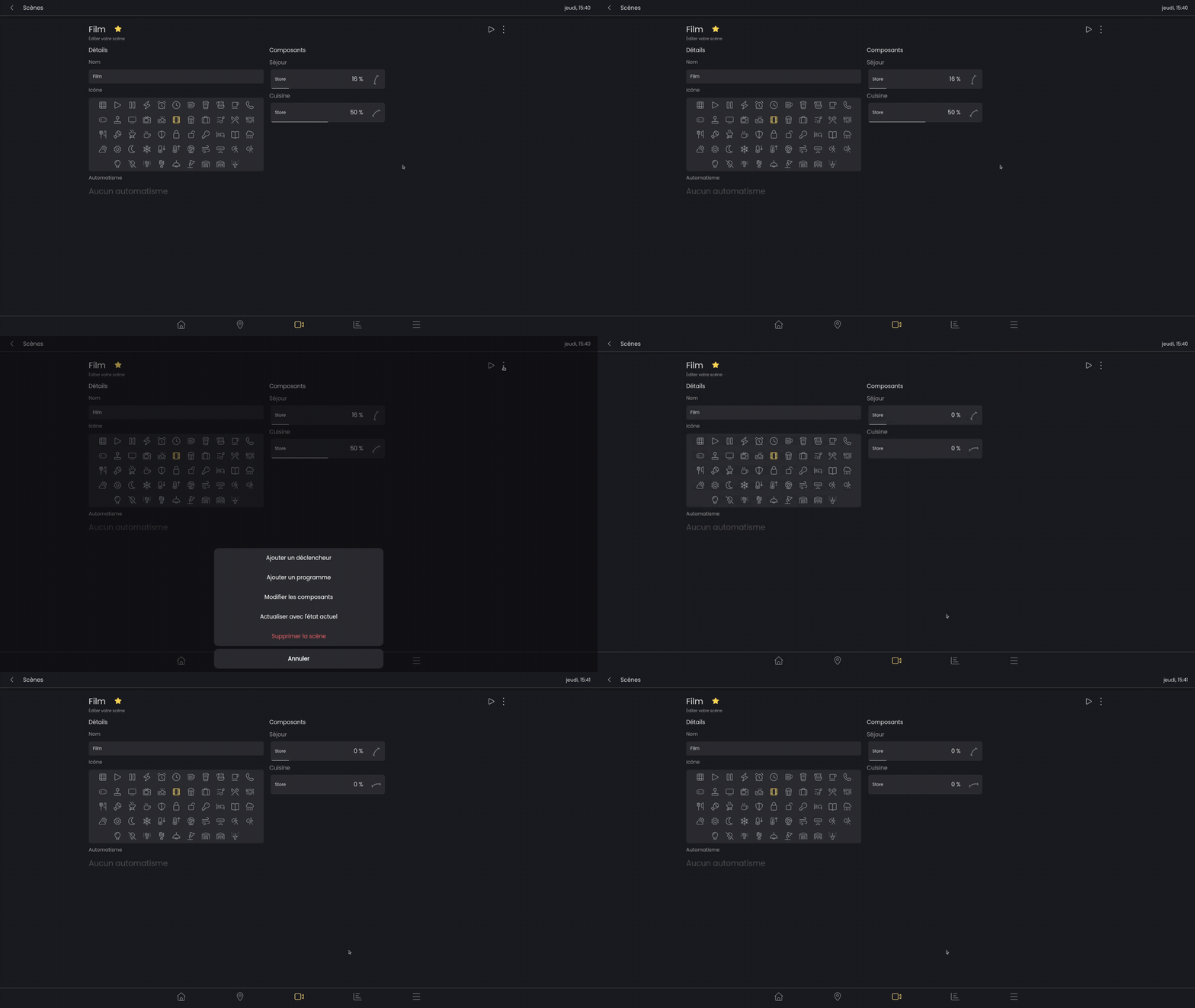

Operation
Scenes offer significant convenience in controlling connected components. They allow you to set lights, blinds, and heaters to a predefined state in a single action, regardlessof the zone in which they are located.
A scene can be activated from the “Scenes” page, in zone (if it is linked to a zone), or directly from the home page if the scene is defined as a favorite.
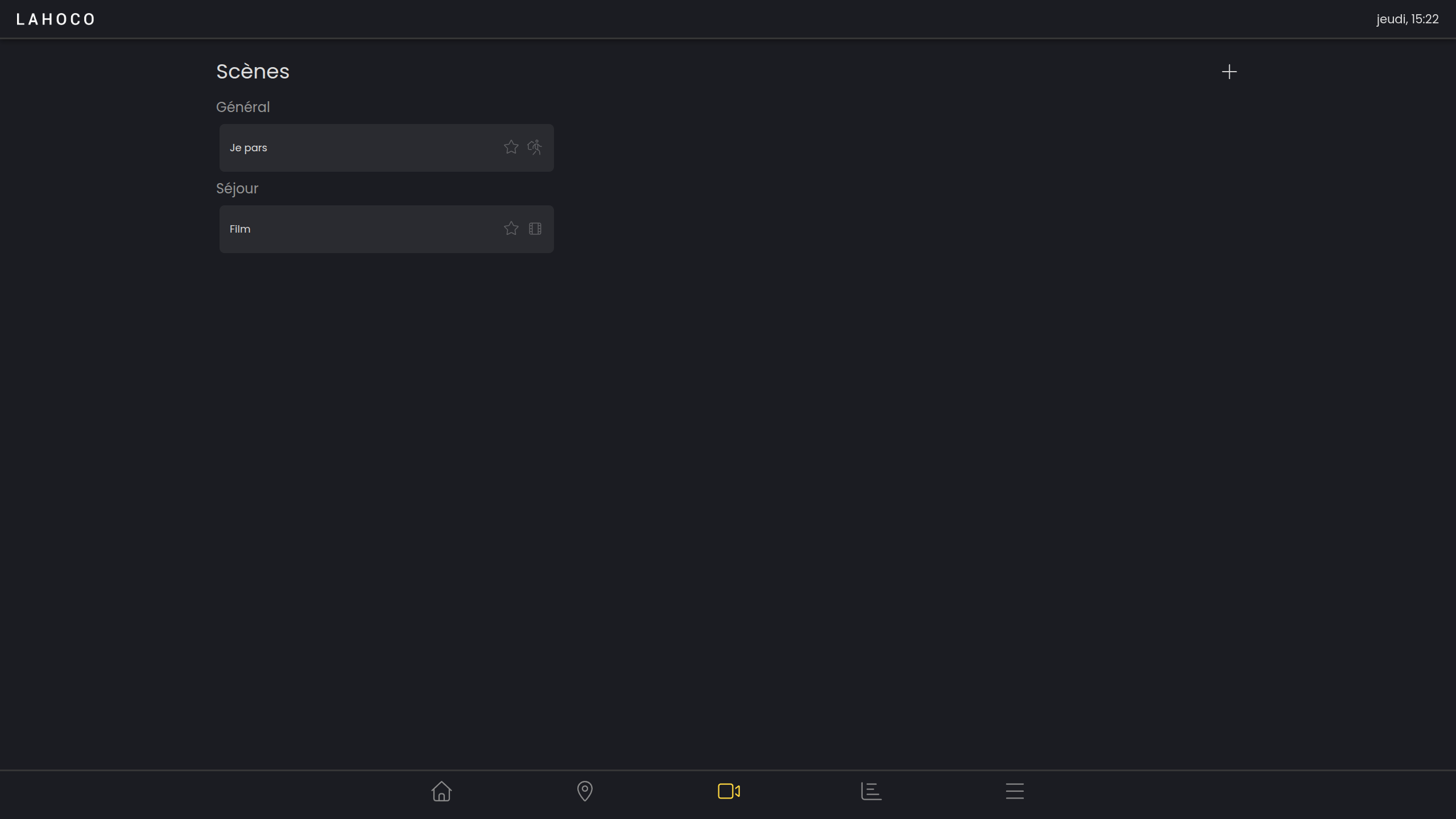
Create a scene
To add a scene, click on the “+” button at the top right of the page.
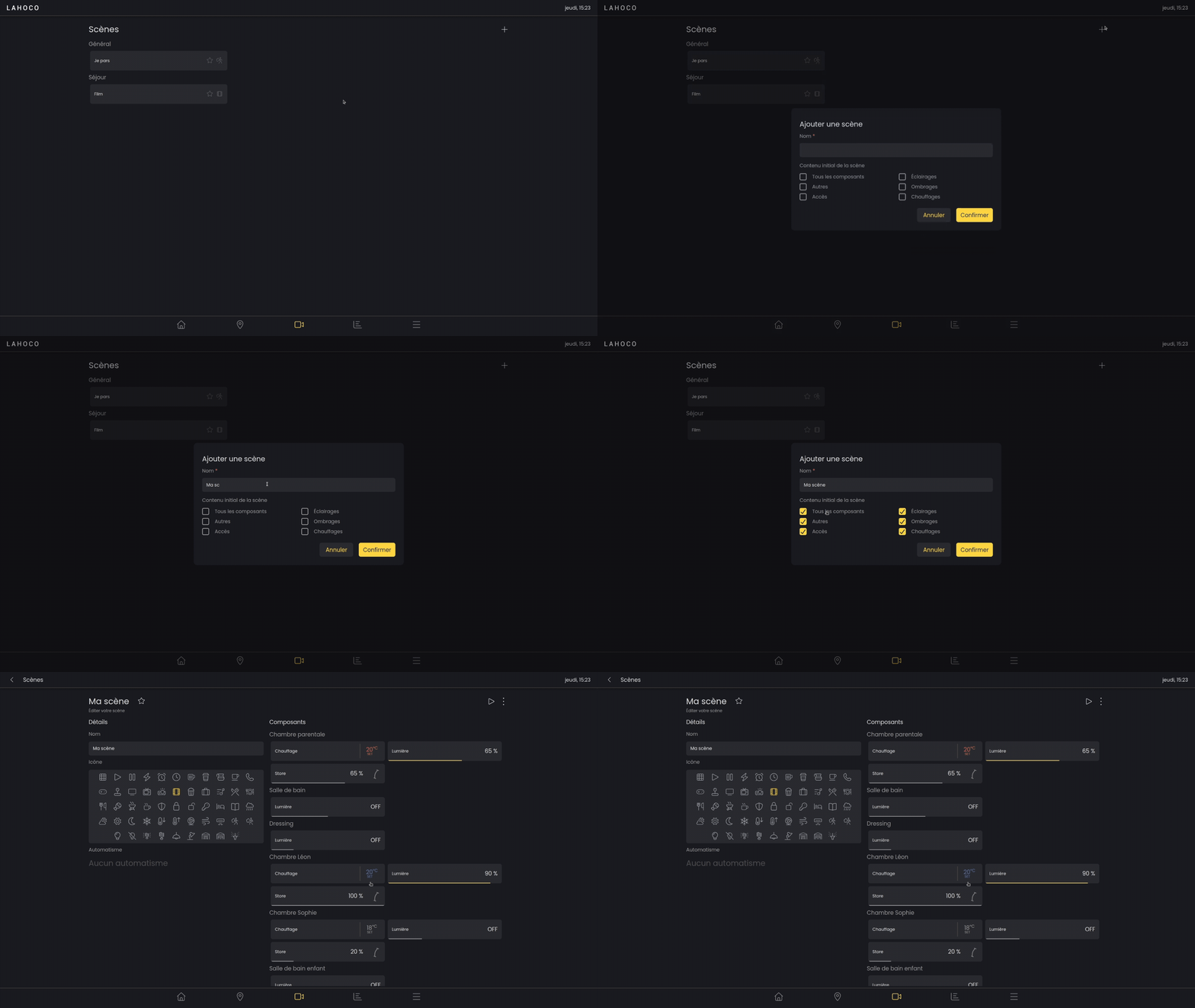
Scene configuration
Once you have entered the new scene, or after long-clicking on the scene and then clicking on “Edit scene”, the scene switches to configuration mode. As soon as a component is modified, its status is saved in the scene so that it can be activated later.
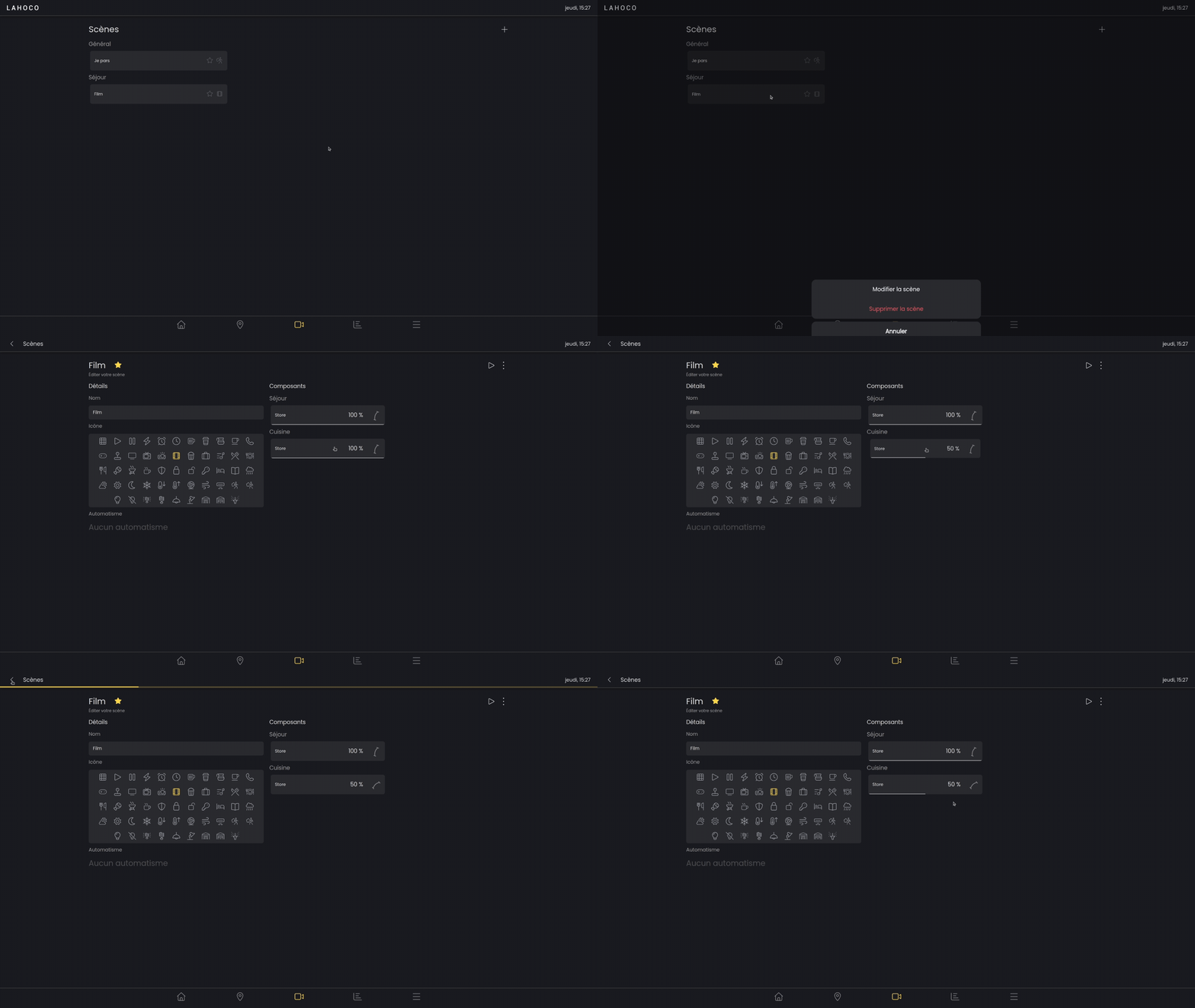
Add to favorites
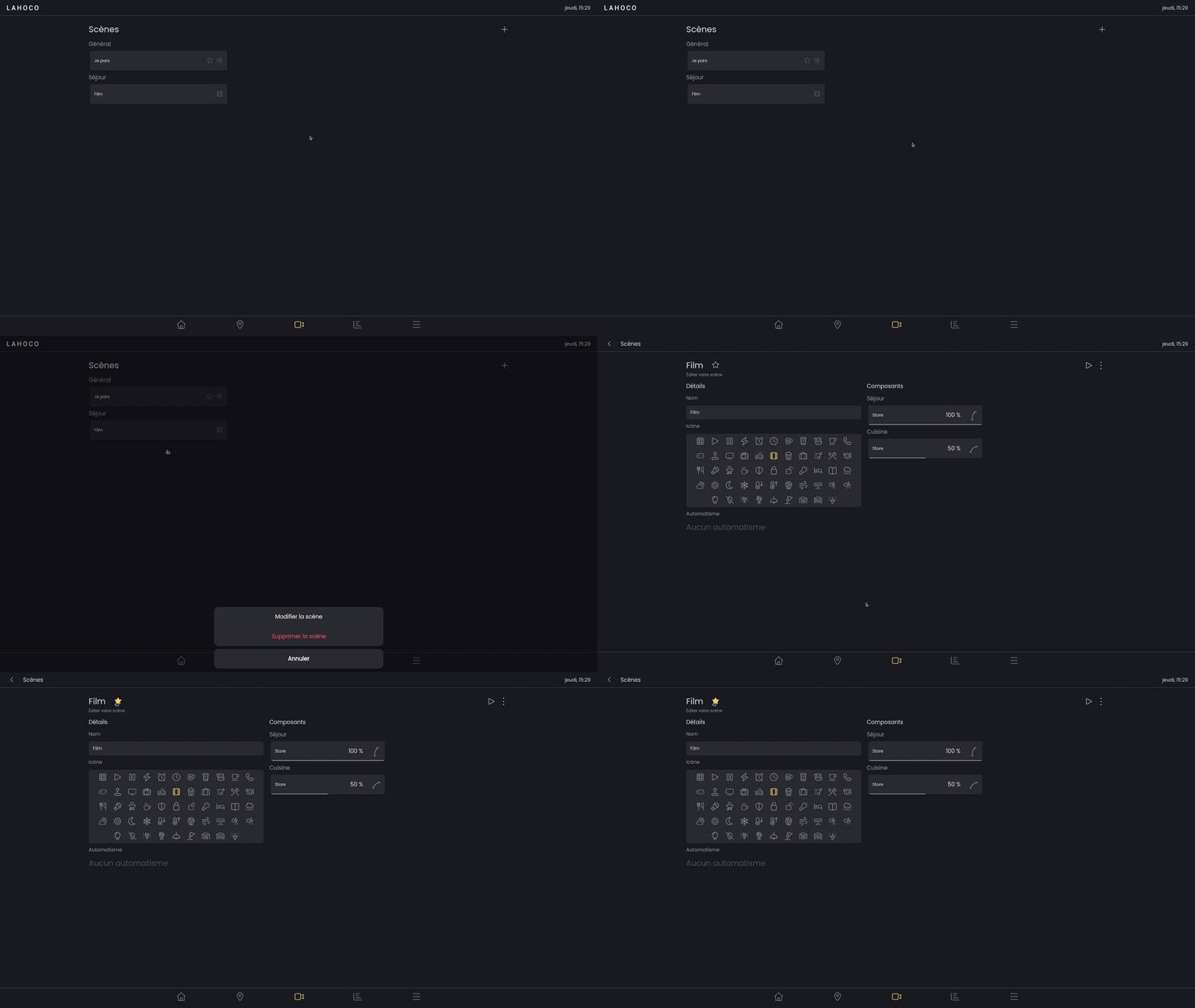
To add a scene to your favorites, go to the area and click on the star to the right of the name so that it turns yellow and is added to your favorites.
Here is an example of how to add a scene to your favorites :
Modifying components
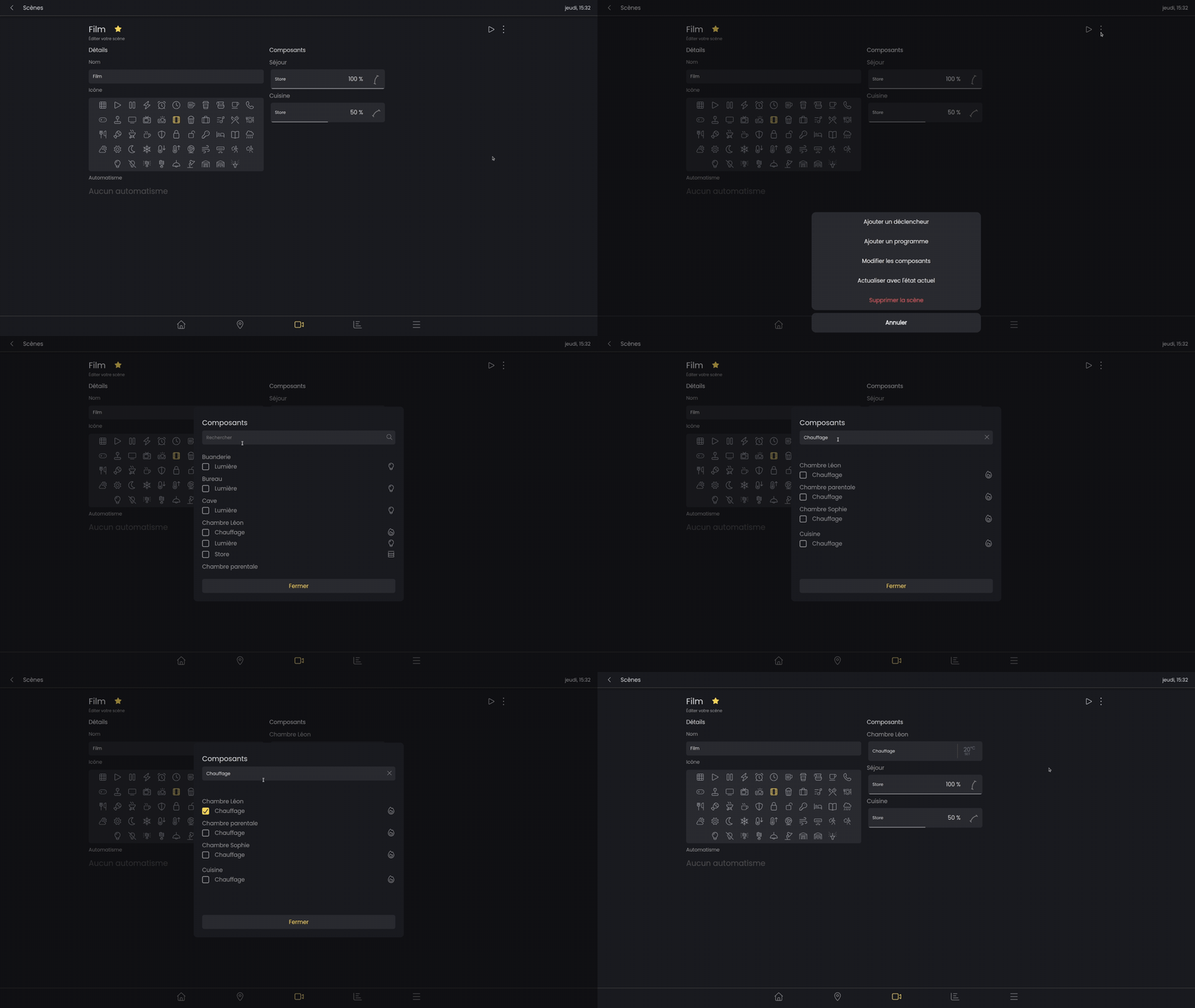
Components can be added to or removed from a scene via the options menu.
Routines and triggers
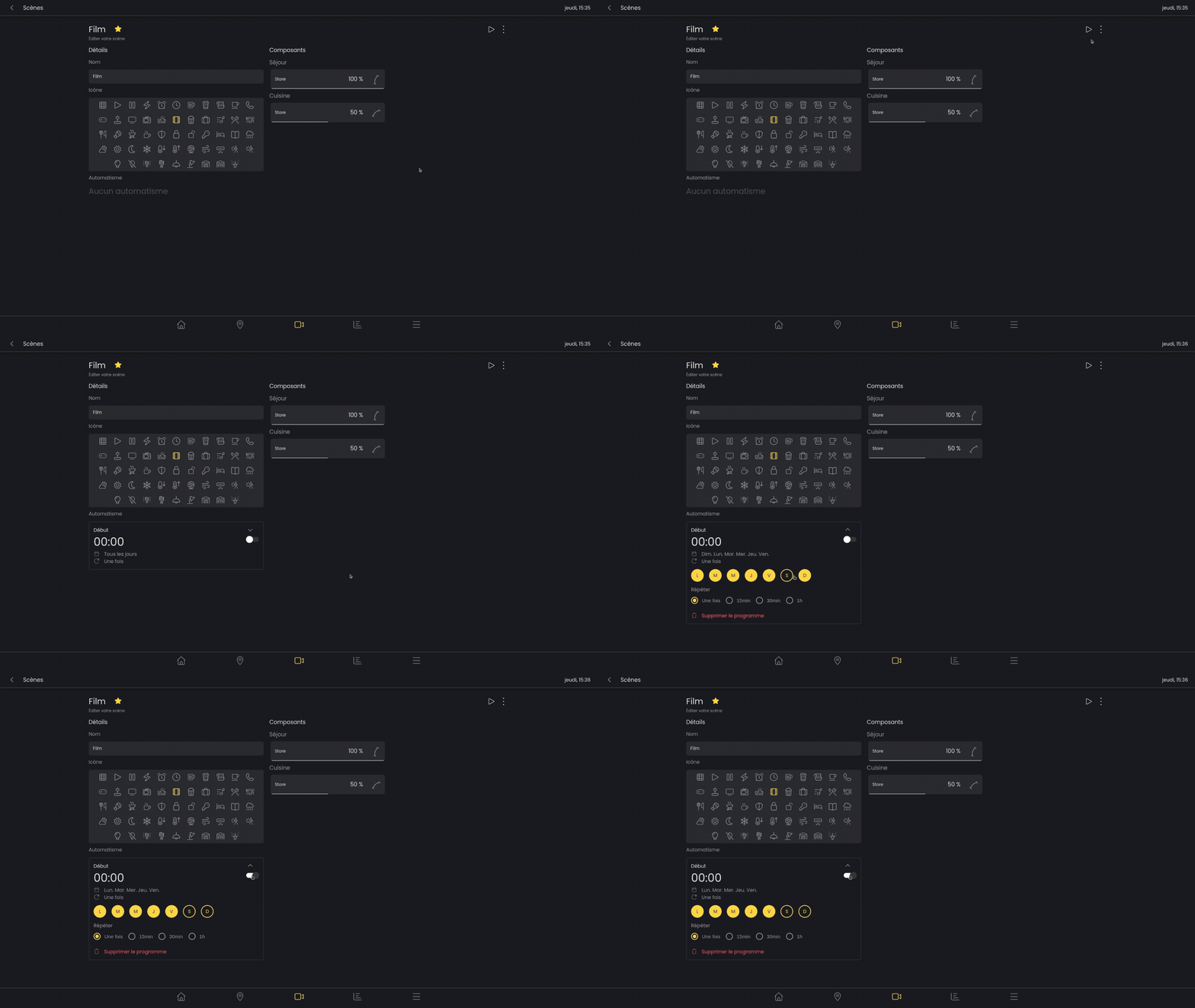
Routines allow you to automatically launch scenes at certain times of the say using triggers.
You can configure a routine for a scene on the scene configuration page (see the Scene configuration section).
The folowing settings can be configured :
-
Trigger activation/deactivation
-
Choice of days
-
Choice of times
-
Choice of repetitions
-
Deletion
For example, activate the routine Monday through Friday at 10 a.m. and set the kitchen light to 80% :
Update with current state
You can update an existing scene with the current state of your components.