
Operation
Scenes offer significant convenience when controlling connected components. With a single action, they let you set lights, blinds, and heaters to a predefined state, regardless of the zone they are located in.
A scene can be activated from the "Scenes" page, from the zone (if it is linked to a zone), or directly from the home page if the scene is set as a favorite.
Creating a scene
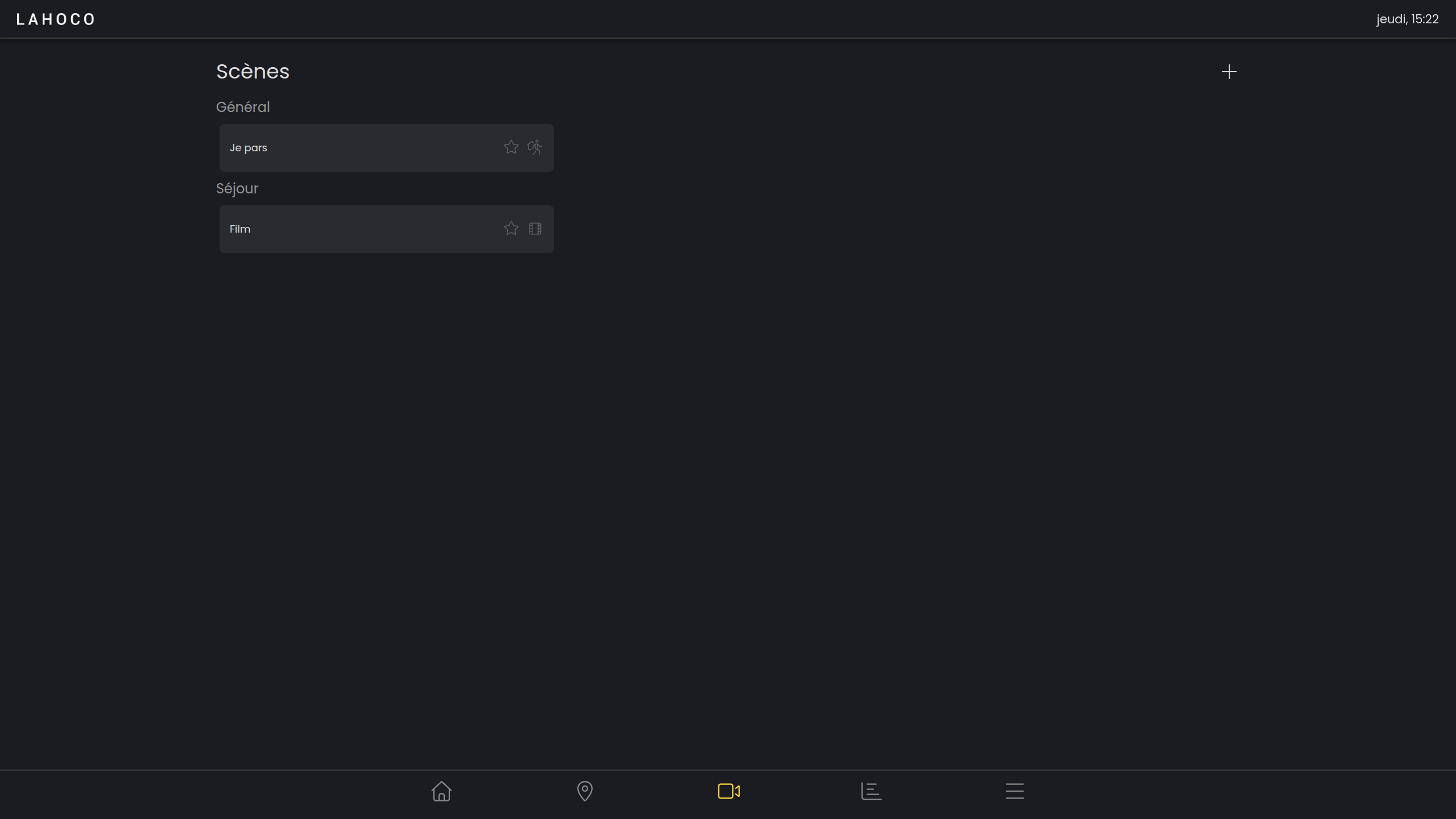
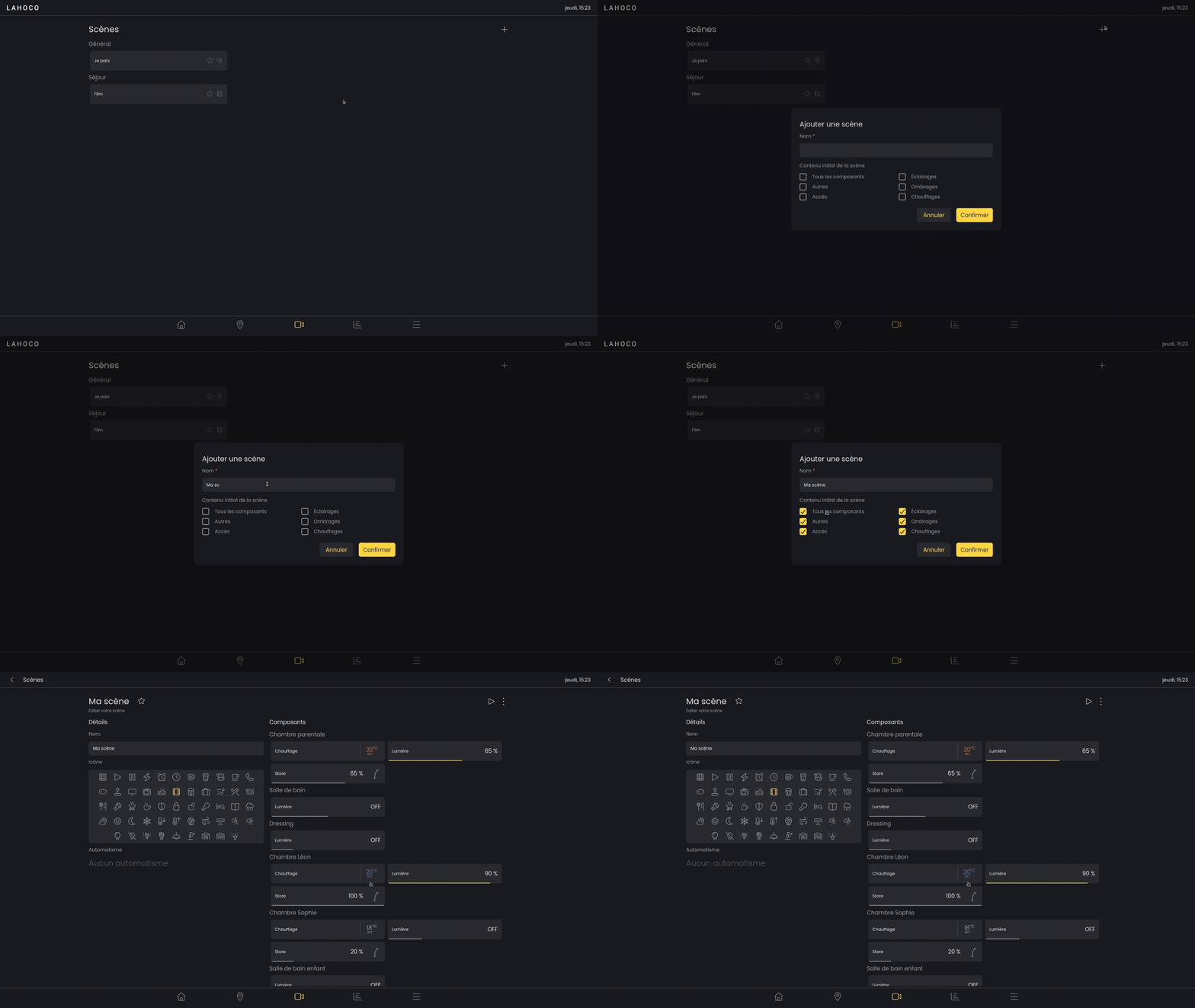
To add a scene, click the “+” button located at the top right of the page.
Configuring scenes
Once you have entered the new scene, or after long-pressing the scene and then clicking “Edit scene”, the scene switches to configuration mode. As soon as a component is changed, its state is saved in the scene so that it can be activated later.
Adding to favorites
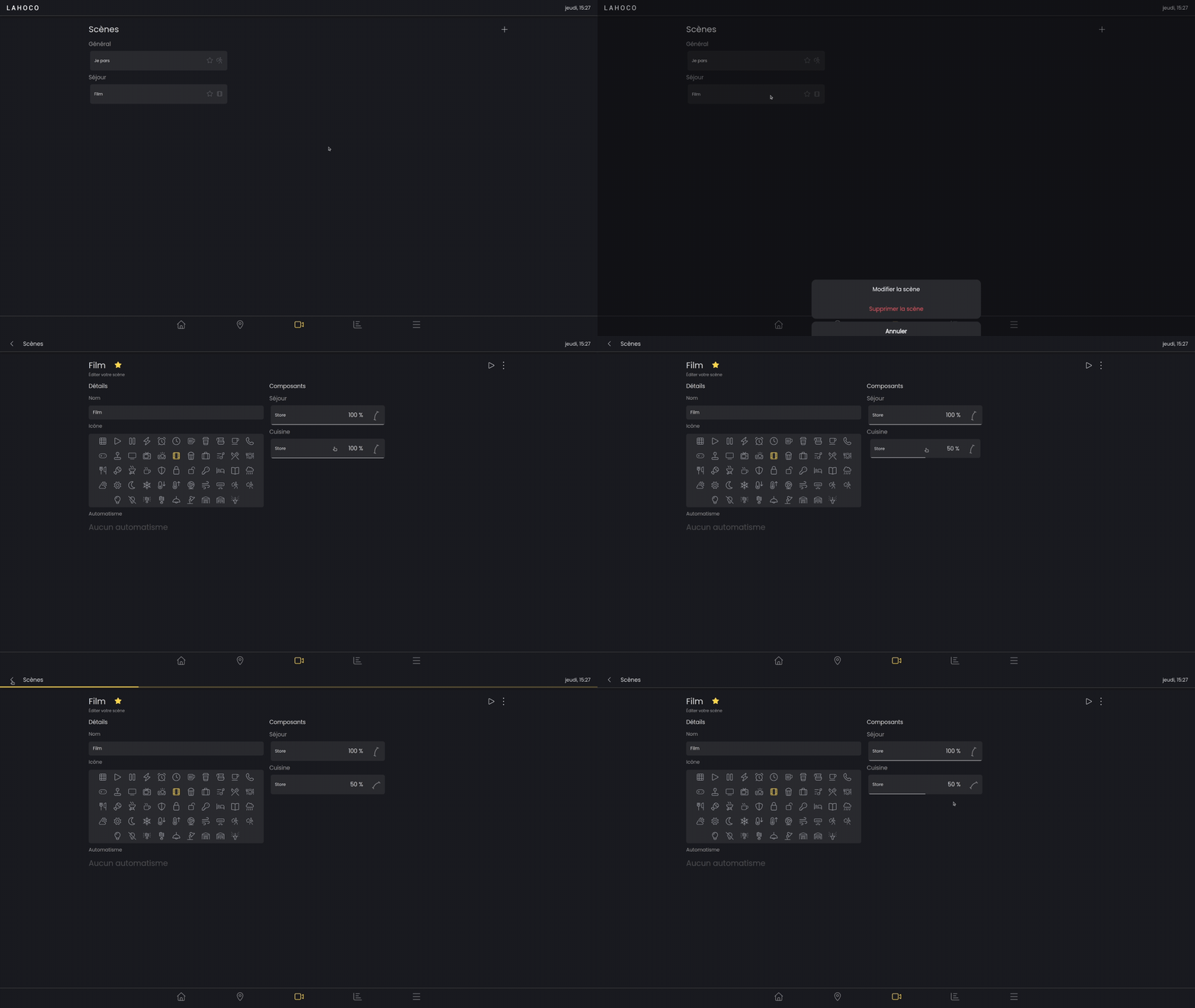
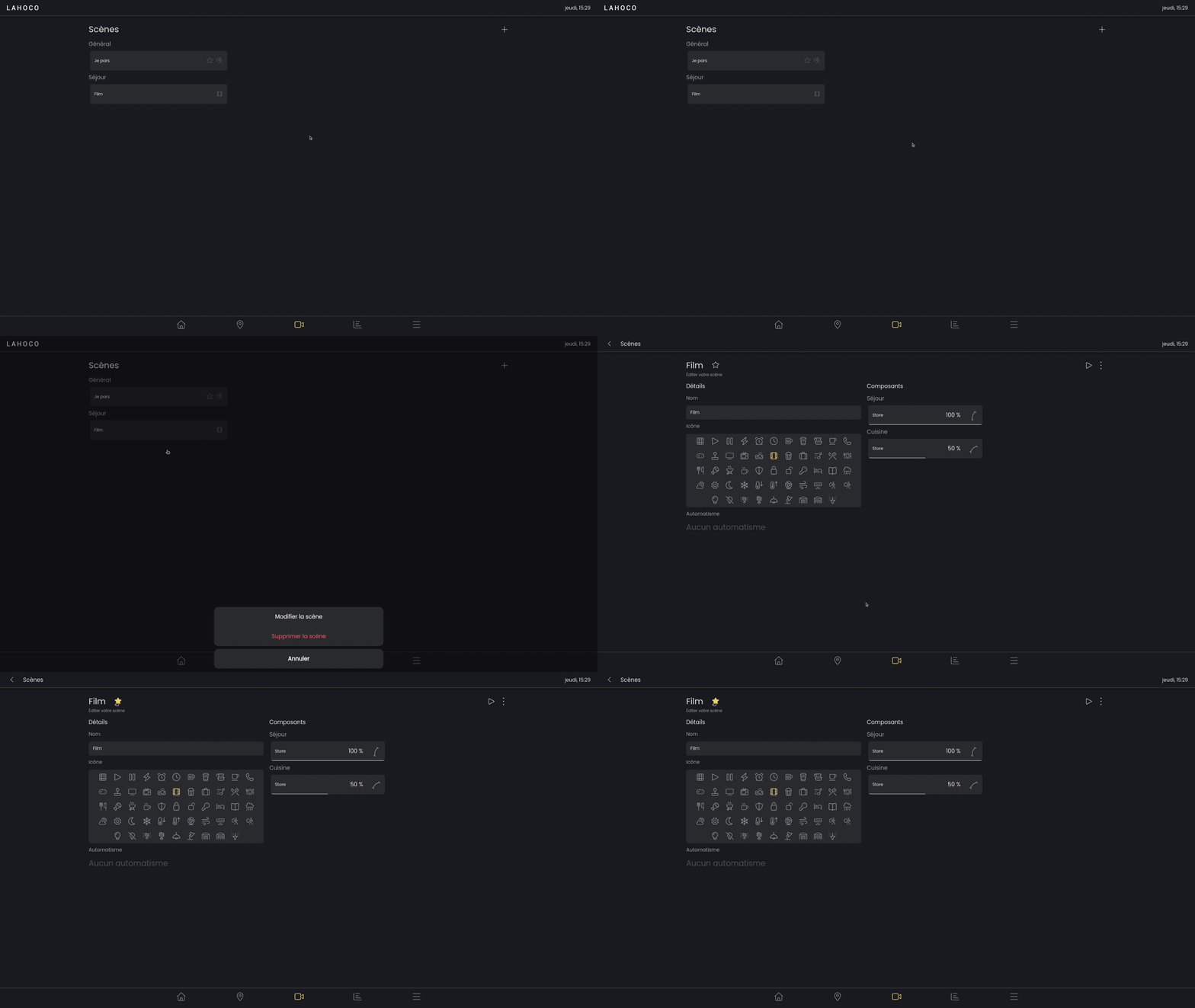
To add a scene as a favorite, go to the zone, then click the star located to the right of the name so that it turns yellow and is added as a favorite.
Here is an example of how to add a scene as a favorite:
Modifying components
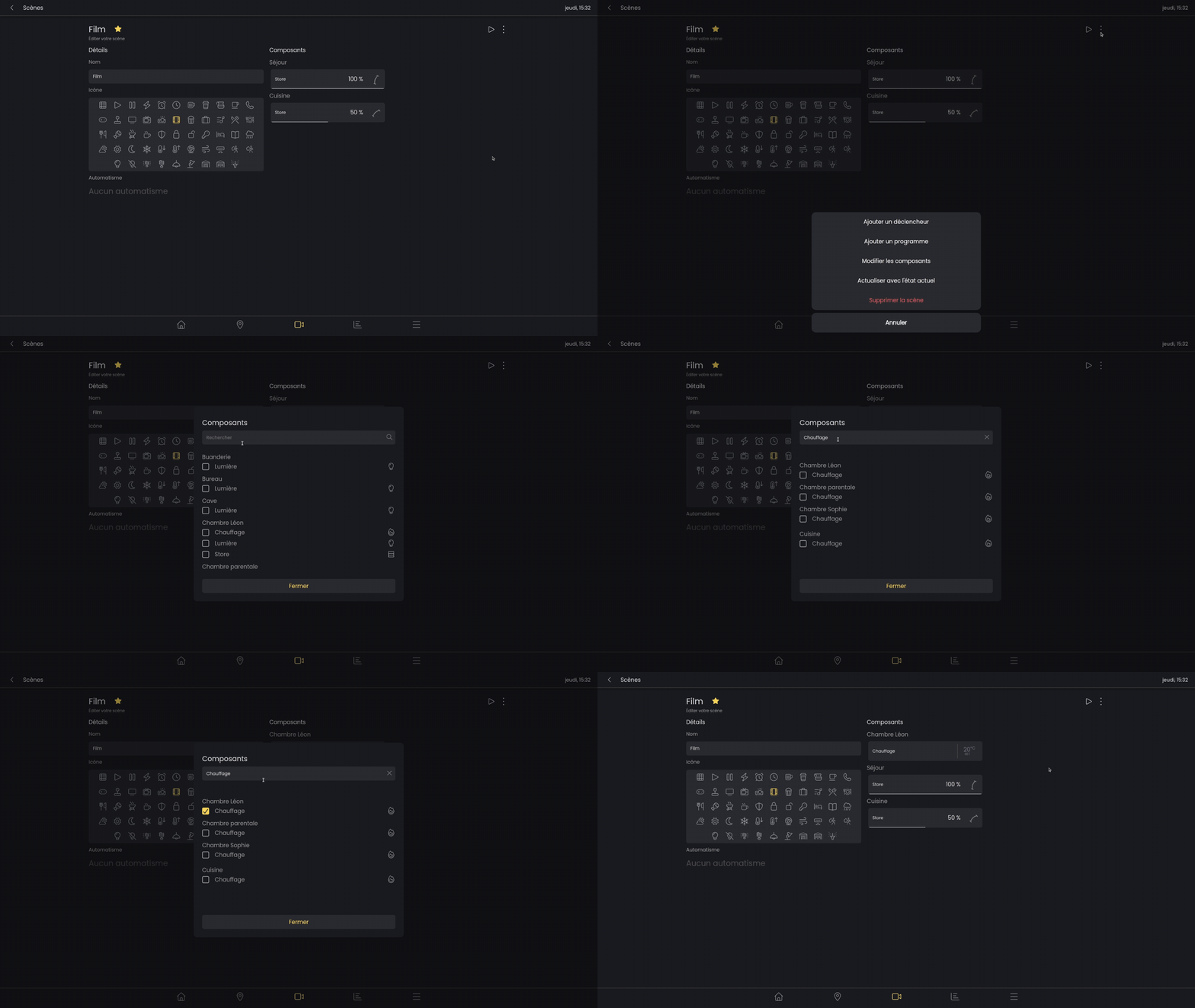
Adding or removing components from a scene is done via the options menu.
Automation
Automations let you automatically trigger scenes, whether through schedules, alarms, or sensors.
The automation configuration for a scene is accessible from the scene’s configuration page (see section Configuring scenes).
Schedule
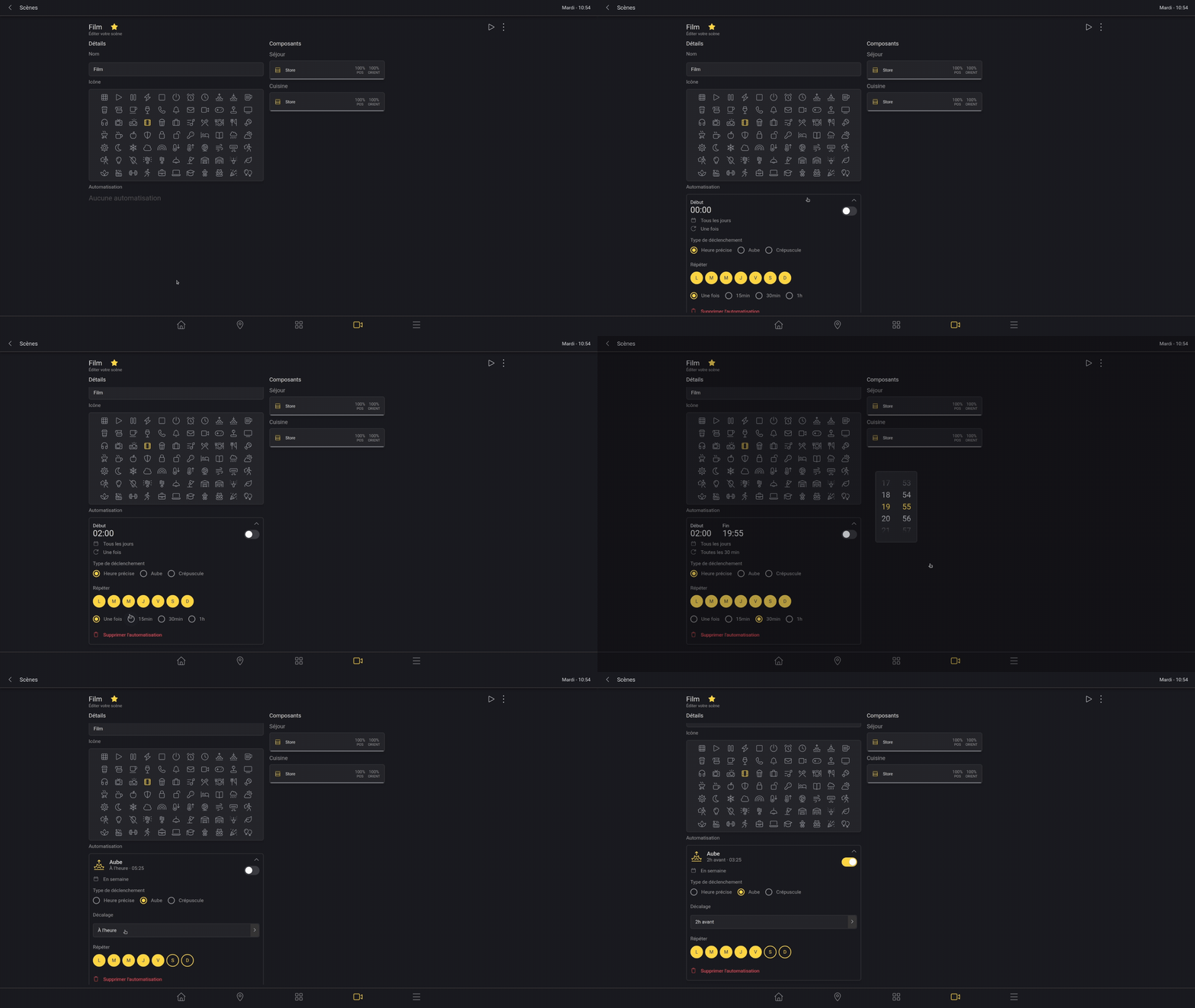
For schedules, you can choose to trigger at a specific time or relative to dawn and dusk.
For a specific time, you can set the repeat interval as well as the start and end times.
For dawn and dusk, you can set an offset ranging from 4 hours before to 4 hours after.
For each schedule, you can choose the days of the week on which it will repeat.
Alarm
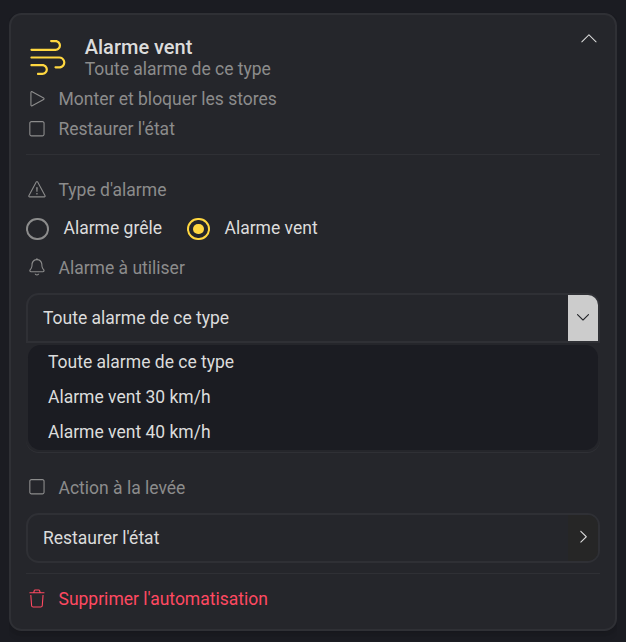
An alarm automation lets you be notified of a hail or wind alarm.
All the components in your scene will be automatically controlled during an alarm, according to the chosen behavior.
You can choose a behavior for the start and the end of the alarm.
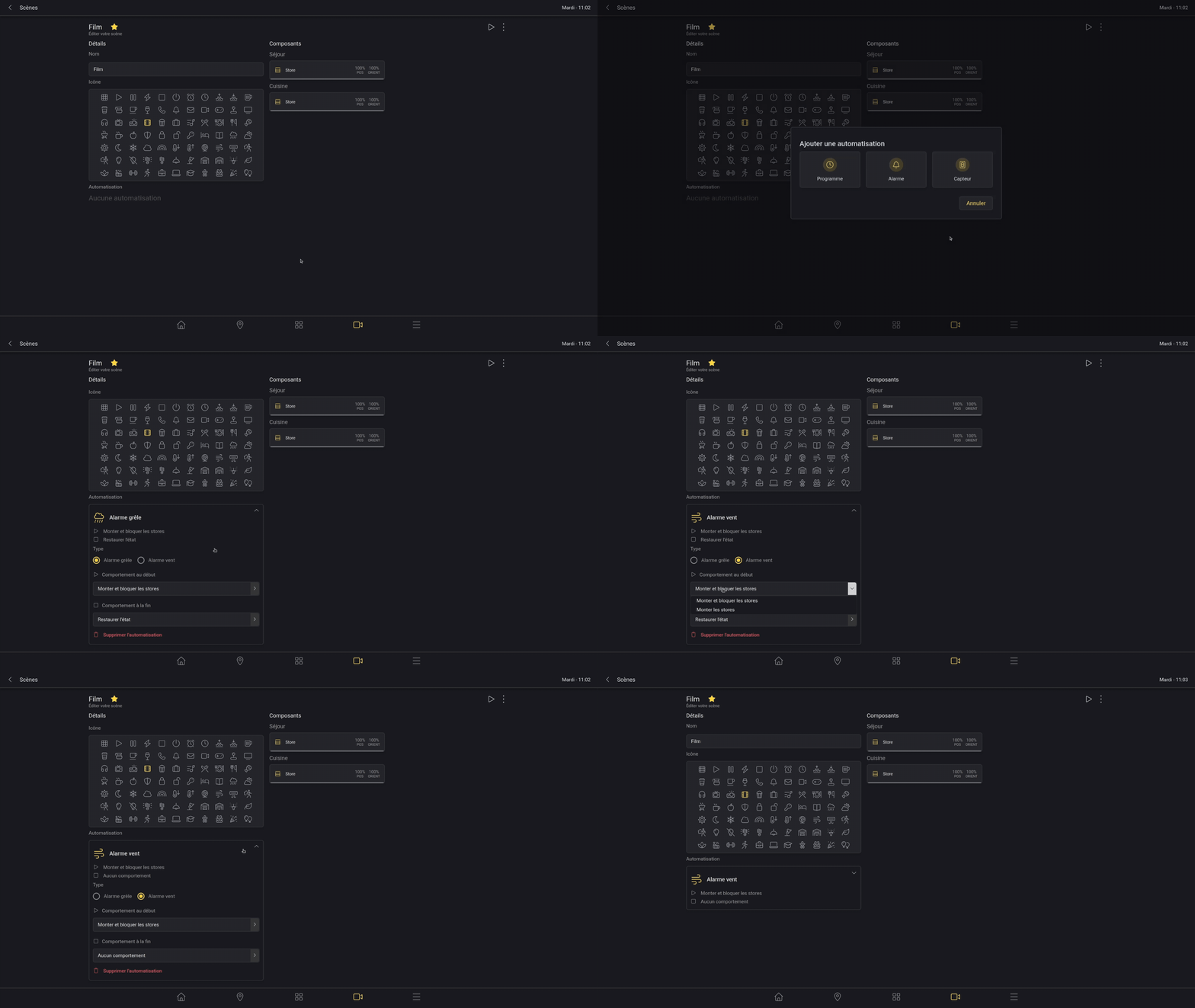
If several alarm components are available, you can select the one to be associated.
Sensor
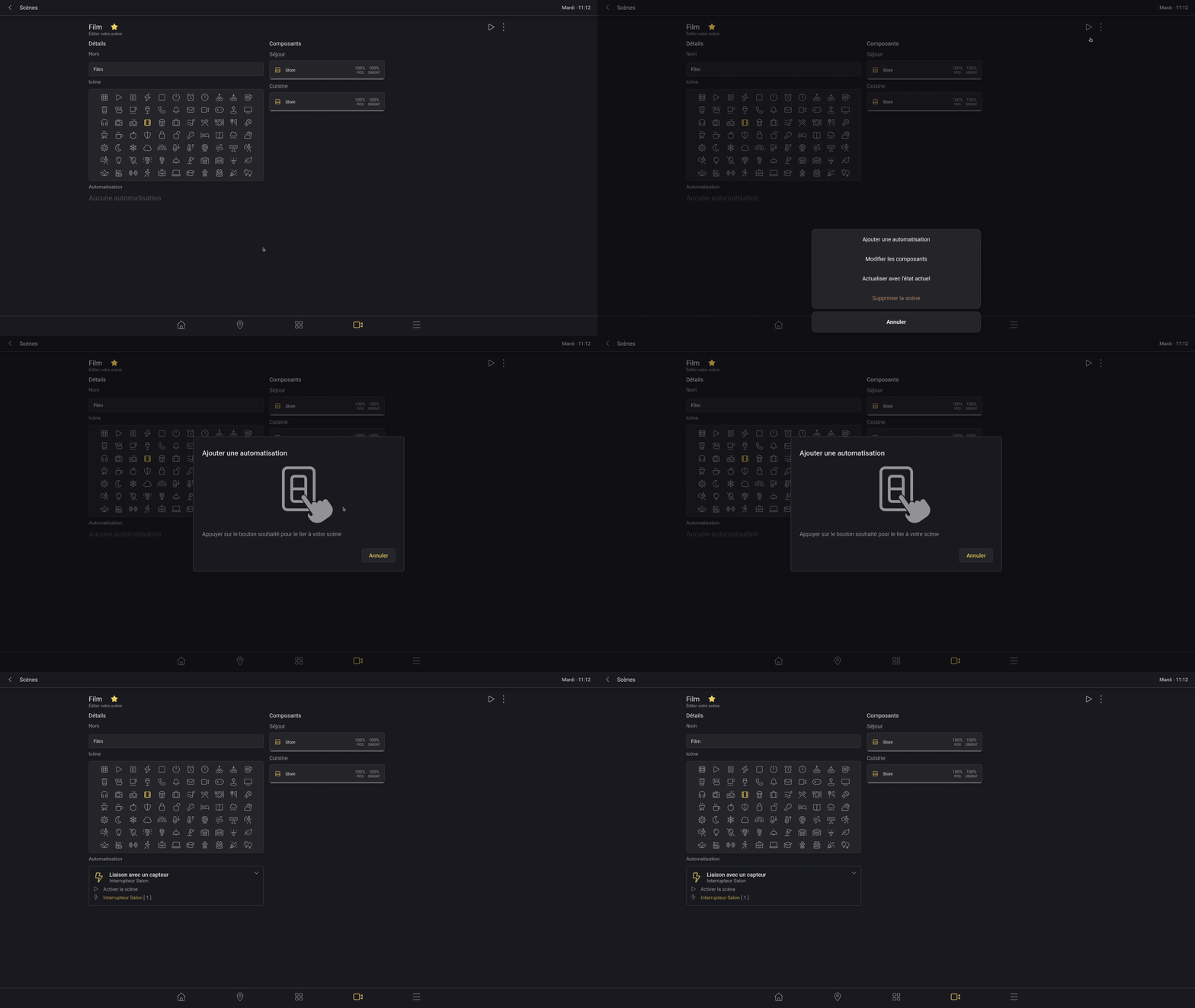
You can link a sensor (scene or switch) to activate a scene.
Simply click the sensor to link it to the scene.
Refreshing with the current state
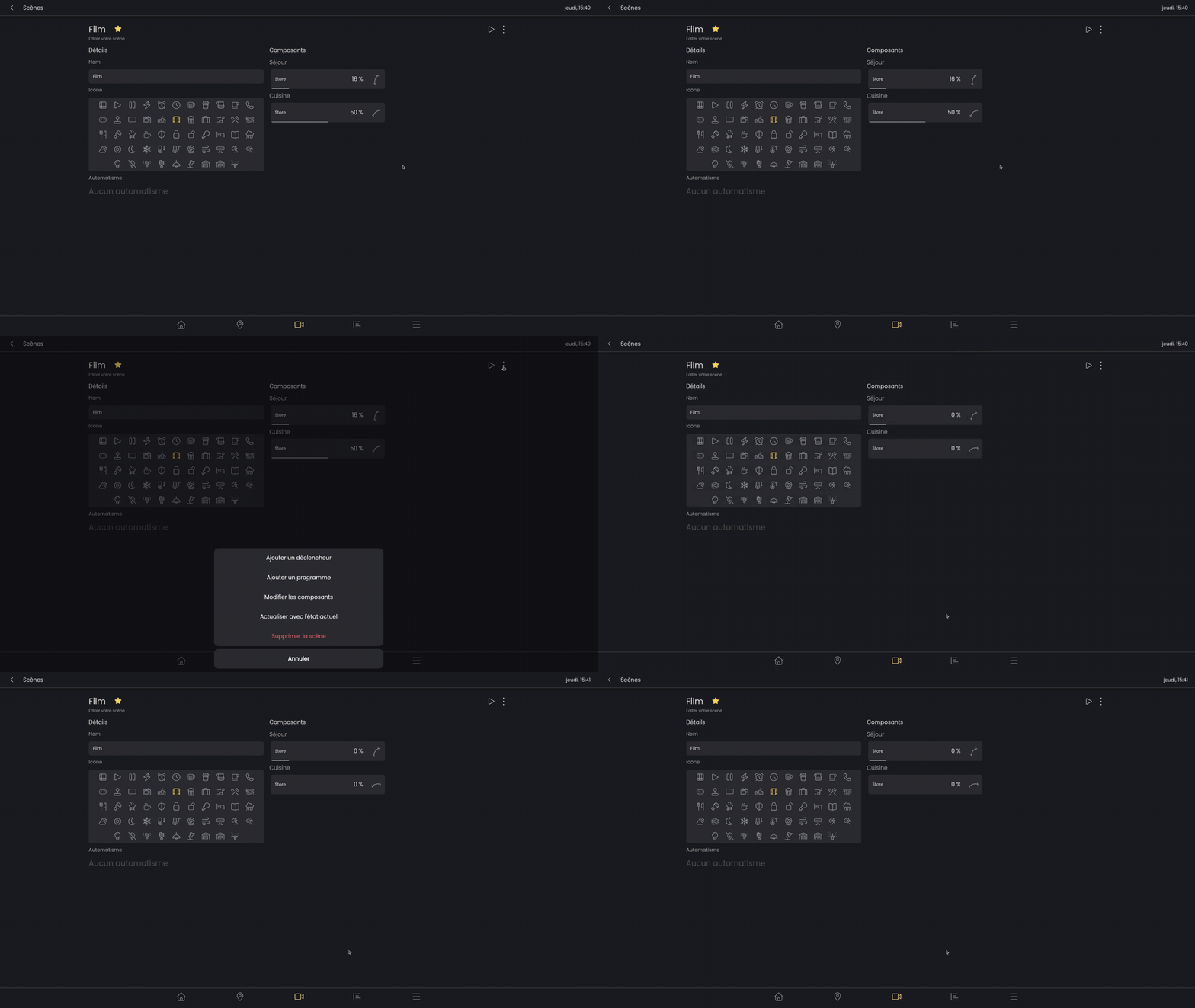
You can update an existing scene with the current state of your components.
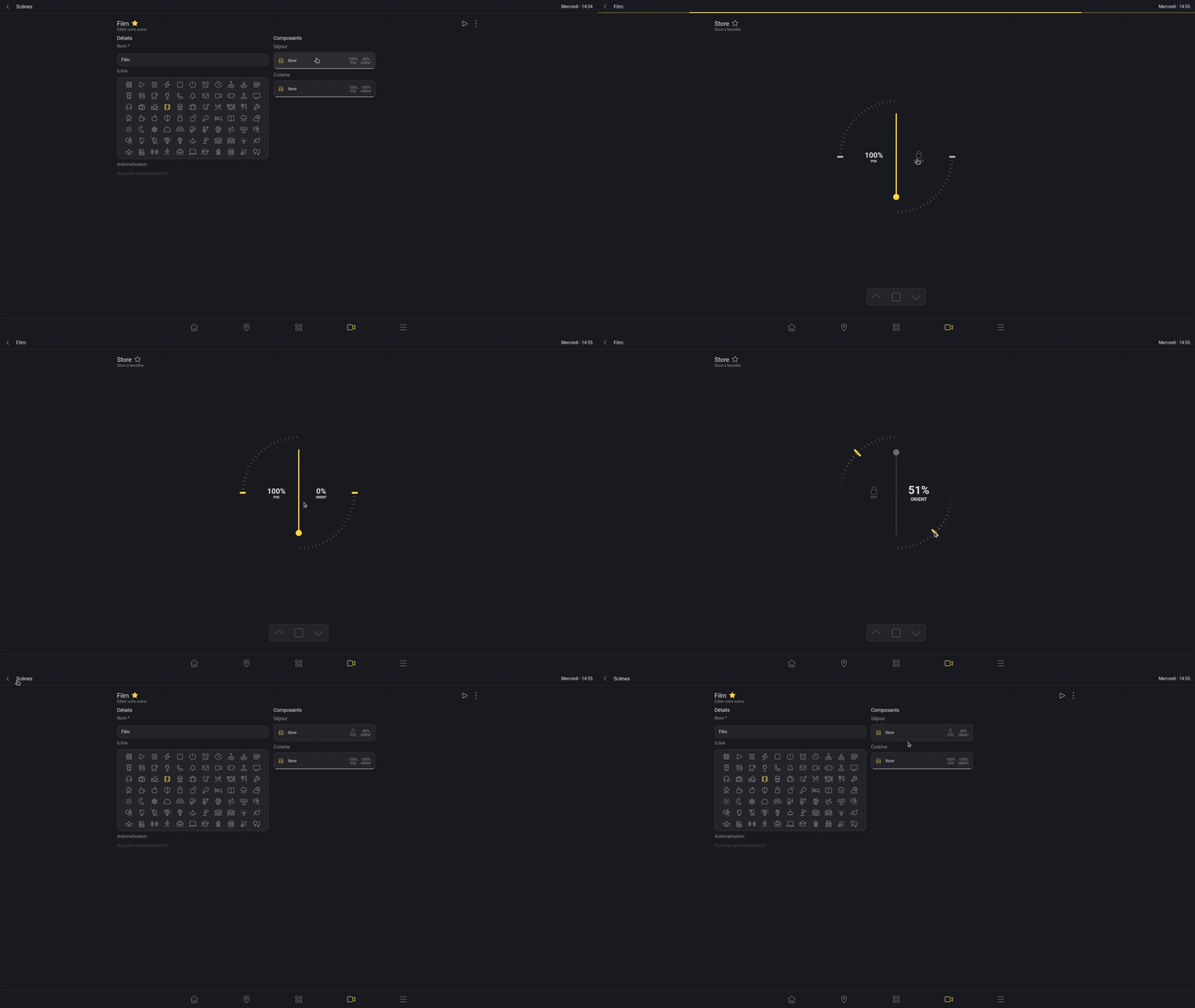
Locking the position or orientation of a blind
If you want to affect only the position or the orientation of a blind, you can lock one of the two by clicking its value. It will then no longer be taken into account when the scene is triggered.
For example, if you lock the position of the blind, it will remain unchanged when the scene is executed, while only the orientation will be applied.