Prerequisites
Here are the prerequisites required to activate the LAHOCO:
-
The LAHOCO CORE module (LCD or LCP) is powered on
-
A wired Internet connection (Ethernet RJ-45) is connected to the LAHOCO CORE
-
An iOS/Android mobile device (preferred solution) OR a web browser with an Internet connection, on the same network as the LAHOCO CORE
Activating my LAHOCO CORE
Two activation methods are available.
-
https://lahoco.atlassian.net/wiki/spaces/LAHDOC/pages/1015868/Activation#Avec-l%E2%80%99application-mobile (preferred method)
-
https://lahoco.atlassian.net/wiki/spaces/LAHDOC/pages/1015868/Activation#Avec-un-navigateur-web
With the mobile application
Once your LAHOCO CORE is connected to the network (RJ-45 socket) and powered on:
-
Install the LAHOCO application on your device (iOS / Android)
-
Log in with a myLAHOCO account. See Create a myLAHOCO account if you don't have one yet.
-
Tap Activate a LAHOCO
If you already have a LAHOCO installation open in your mobile application, go to settings and tap Log out to return to the list of installations.
If the yellow Activate a LAHOCO button does not appear, go to the settings page (gear icon in the top right), and tap Activate a LAHOCO.

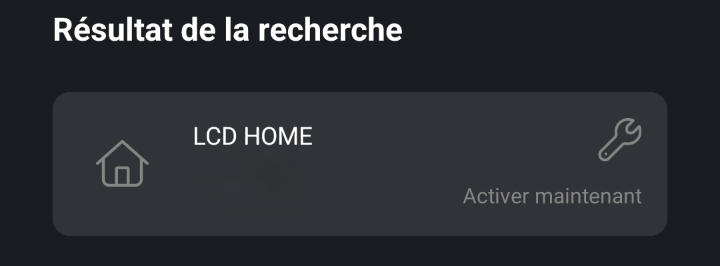
4. Select the LAHOCO CORE you want to activate
If your LAHOCO CORE does not appear, check that your iOS/Android device is on the same network as your LAHOCO CORE.
You can also manually specify a LAHOCO CORE via its IP address, using the Search by IP button.
-
Proceed with activation by filling in the Installation name and the Address of the building where your LAHOCO CORE is located. Advanced configuration lets you manually create your own Site, Building and Unit. This information can be edited later via myLAHOCO.
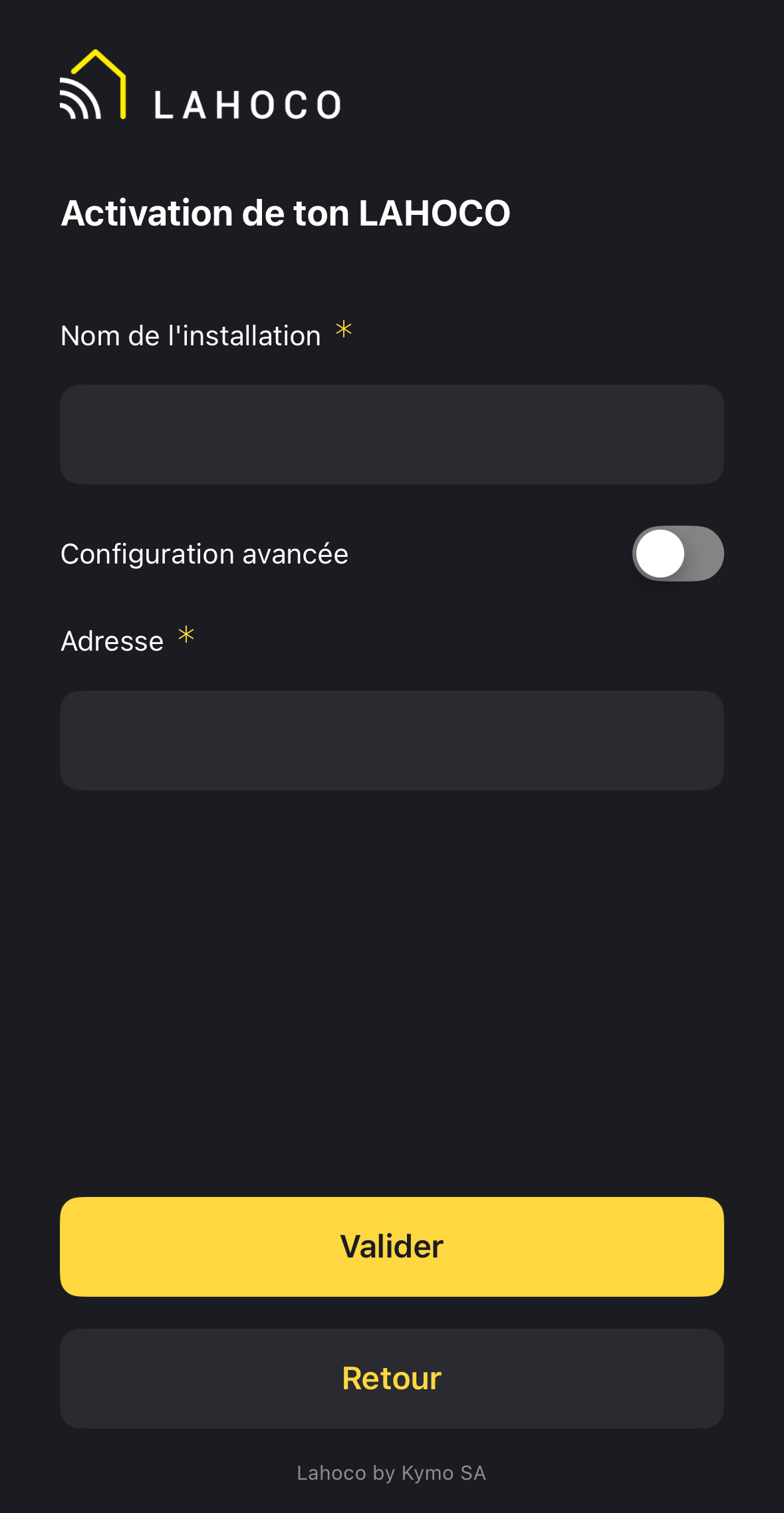
This address will be used to display the weather on the home page.
-
Confirm your activation. Activation may take several minutes while your LAHOCO CORE starts up with the necessary services.
-
Once activation is successful, your LAHOCO will be available in the main list of your application.
With a web browser
Once your LAHOCO CORE is connected to the network (RJ-45 socket) and powered on:
-
Go to myLAHOCO with your preferred web browser
-
Log in with an existing myLAHOCO account, or create a new one. See Create a myLAHOCO account if you don't have one yet.
-
To activate your LAHOCO, you must first create a site, a building and a unit. If you have already configured this, skip to step 7.
-
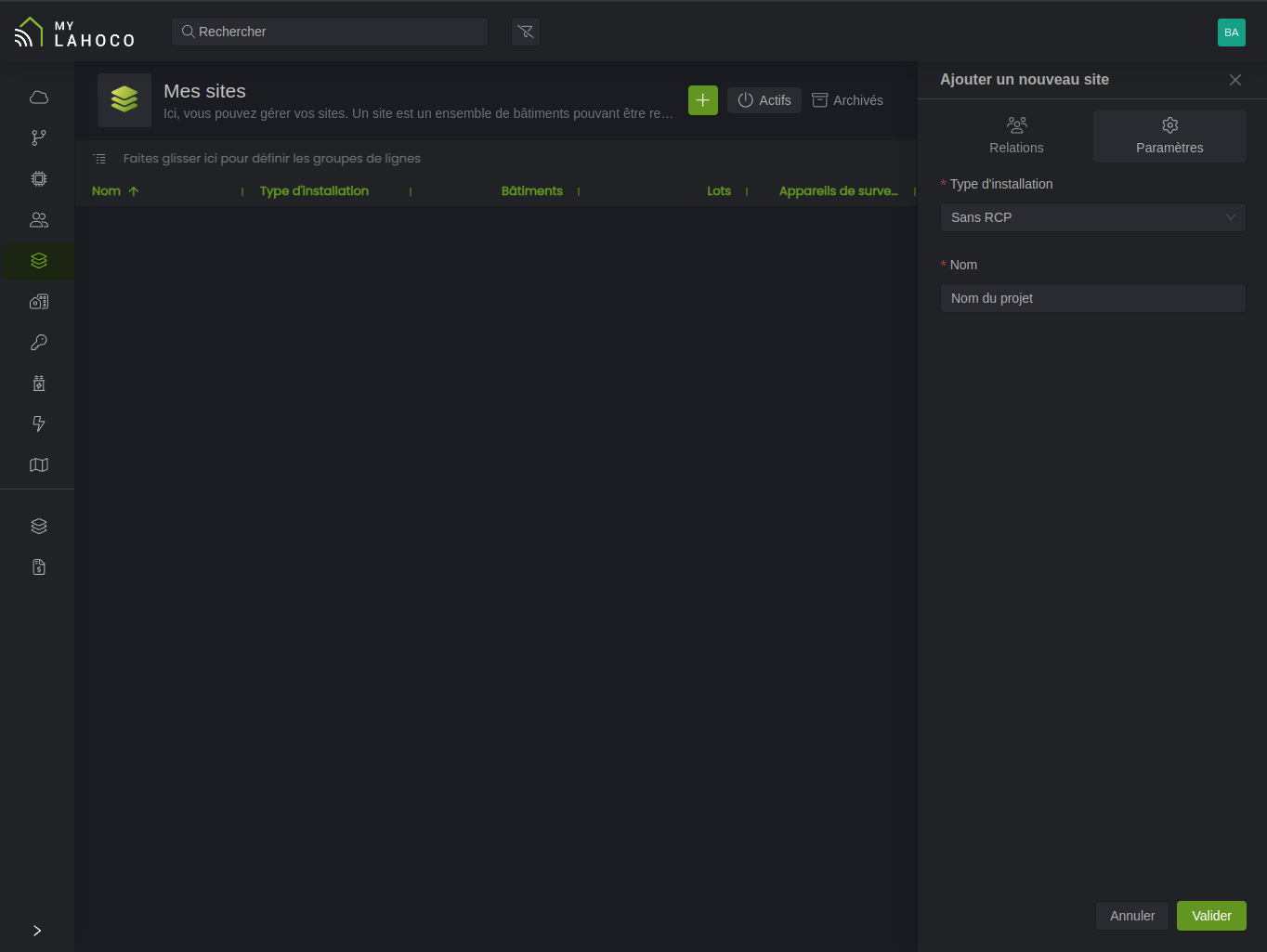
Navigate to the My sites page in the left-hand menu and click
to create a new site. Enter an installation type (Without RCP or With RCP) and a name, then click Confirm.
-
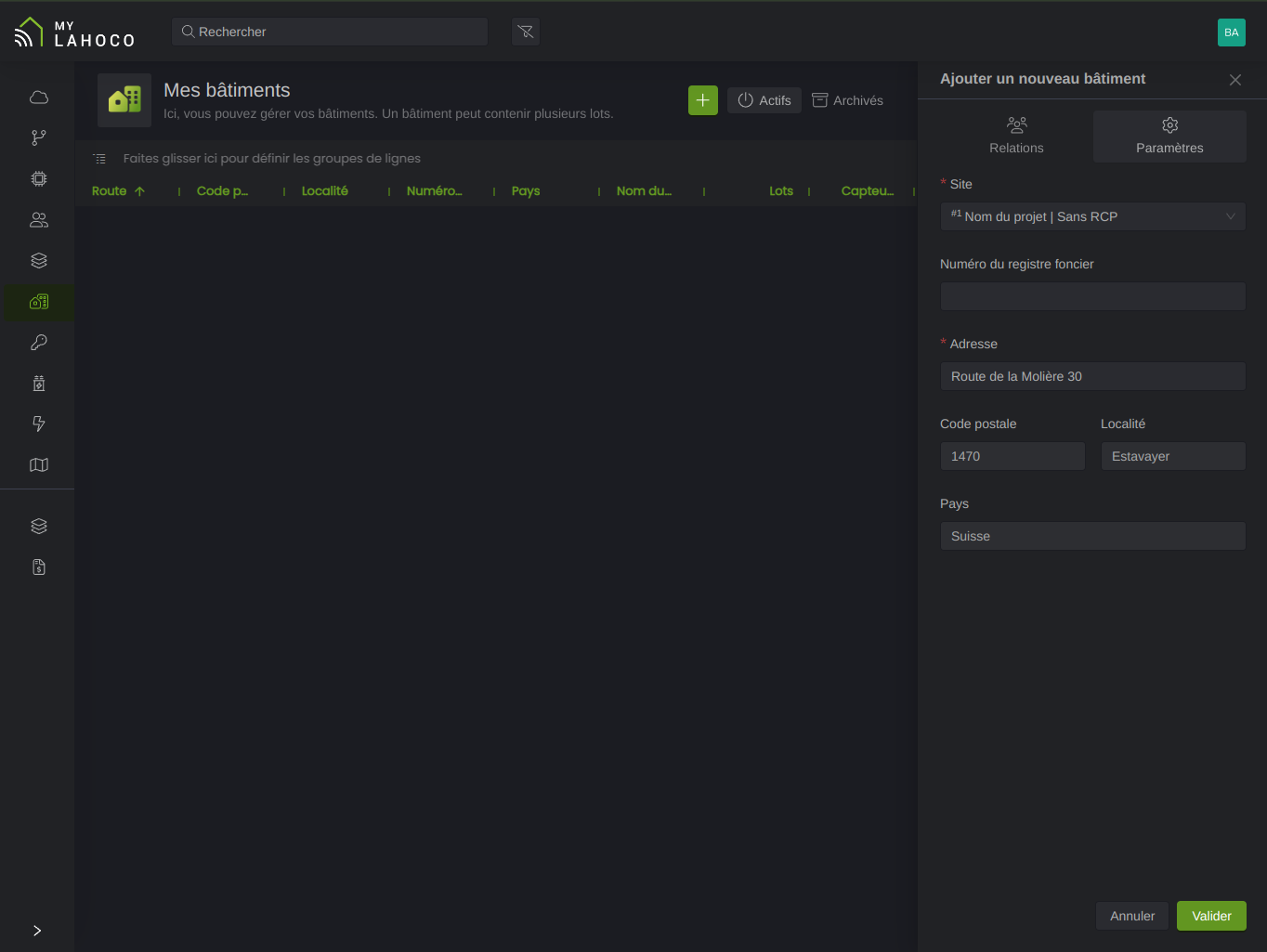
Navigate to the My buildings page in the left-hand menu and click
The address entered here is used to display the weather on the LAHOCO HOME home page
-
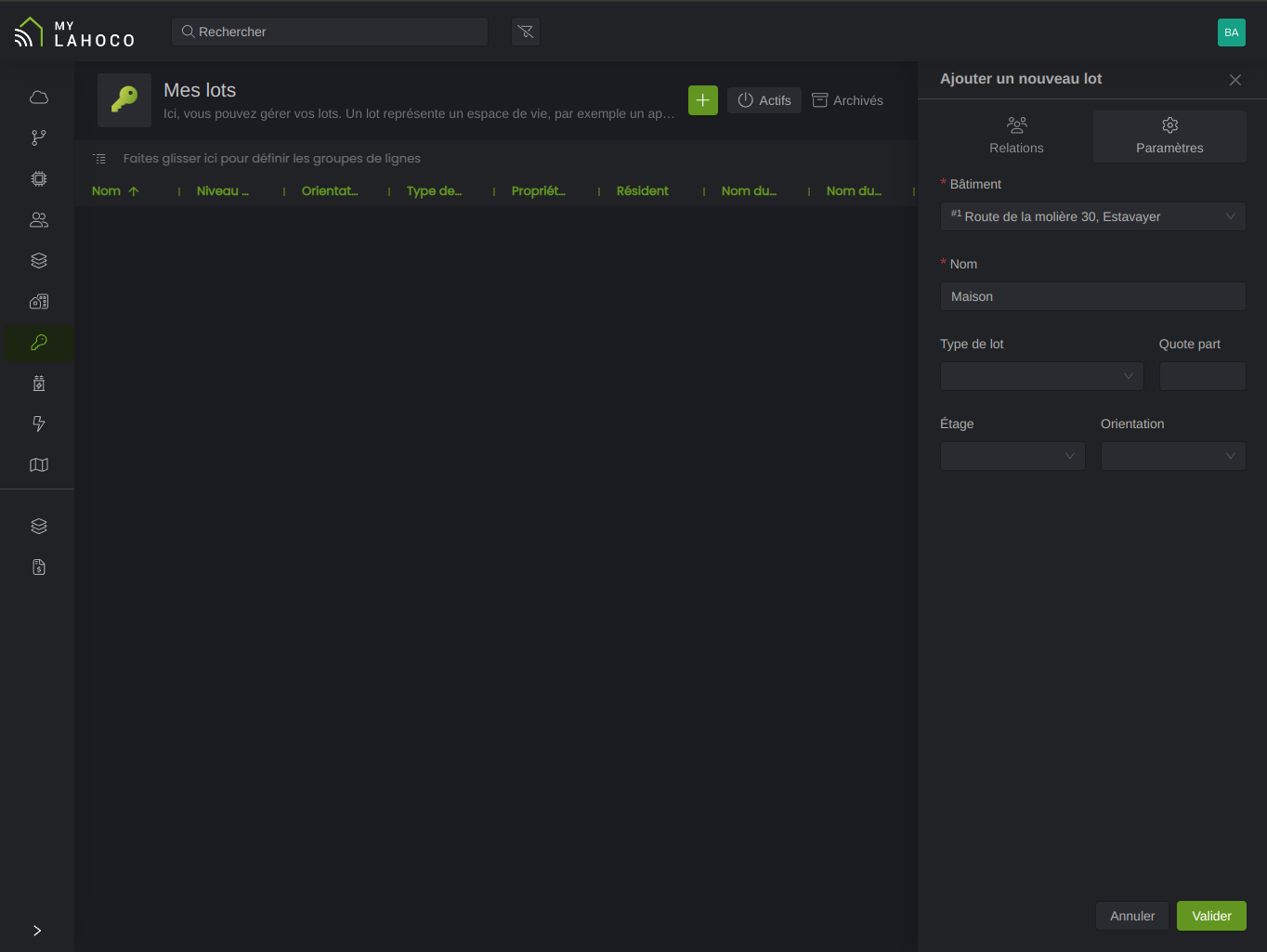
Navigate to the My units page in the left-hand menu and click
-
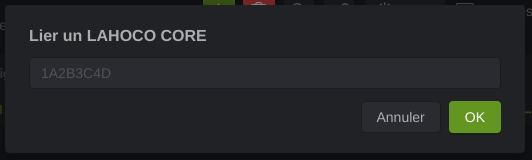
Navigate to the My units page in the left-hand menu and select the unit on which to register your LAHOCO CORE. Click the Link a CORE icon 🔗 at the top and enter the serial number of the LAHOCO CORE then click OK.
The serial number, made up of 8 uppercase characters, is printed on your LAHOCO CORE
-
Set a name, a service type for the CORE, as well as the publication channel Prod in the right-hand panel if it is not already configured.
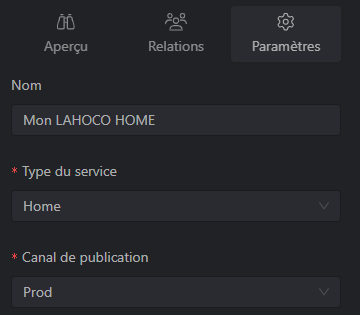
-
Wait a few minutes and your LAHOCO CORE will activate automatically!
Activation takes about 10 minutes, depending on the speed of your Internet connection