
Operation
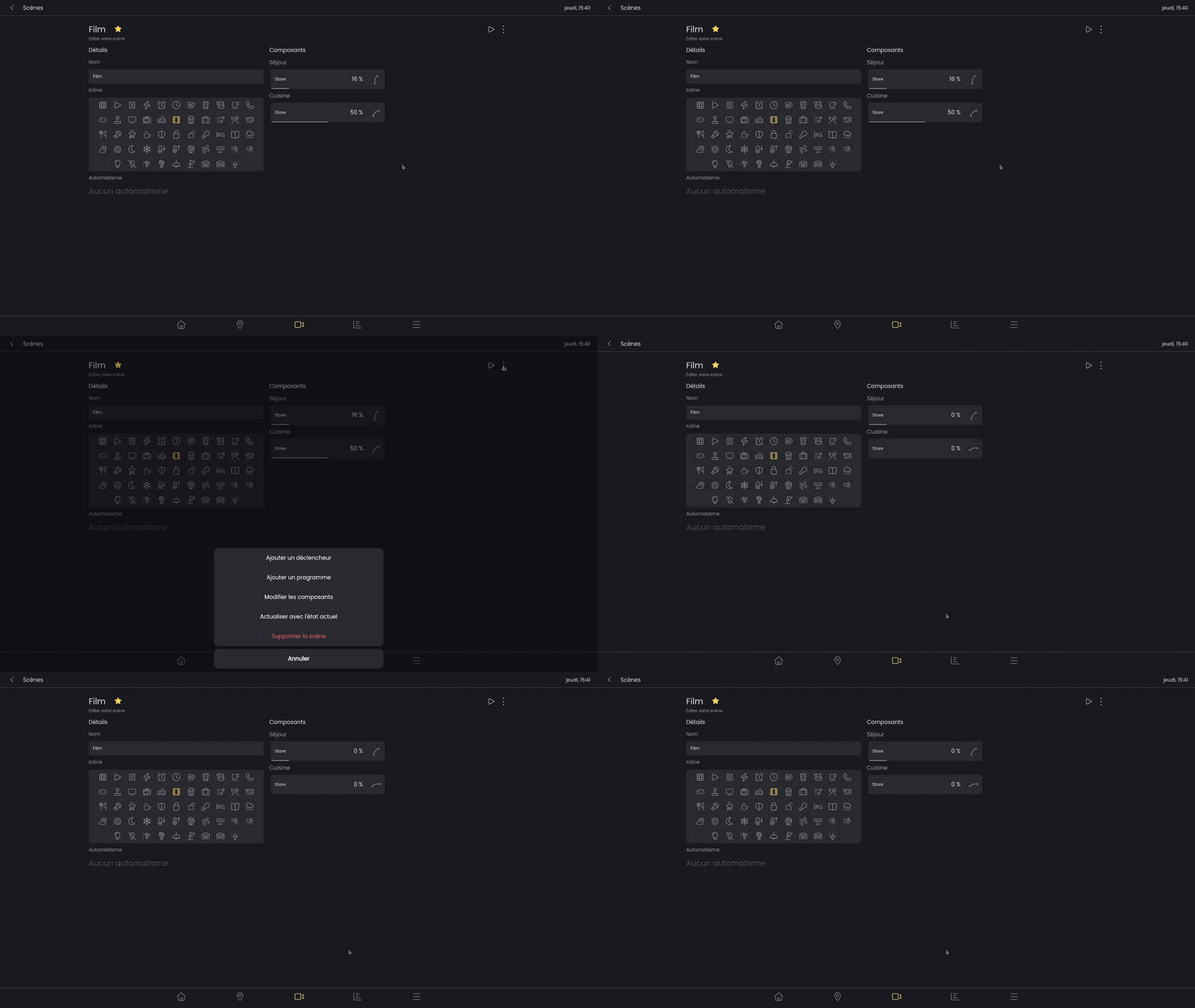
Scenes provide significant convenience in managing connected components. They allow, with a single action, to set lights, blinds, and heating to a predefined state, regardless of the zone in which they are located.
A scene can be activated from the "Scenes" page, within the zone (if it is linked to a zone), or directly from the home page if the scene is set as a favorite.
Create a scene
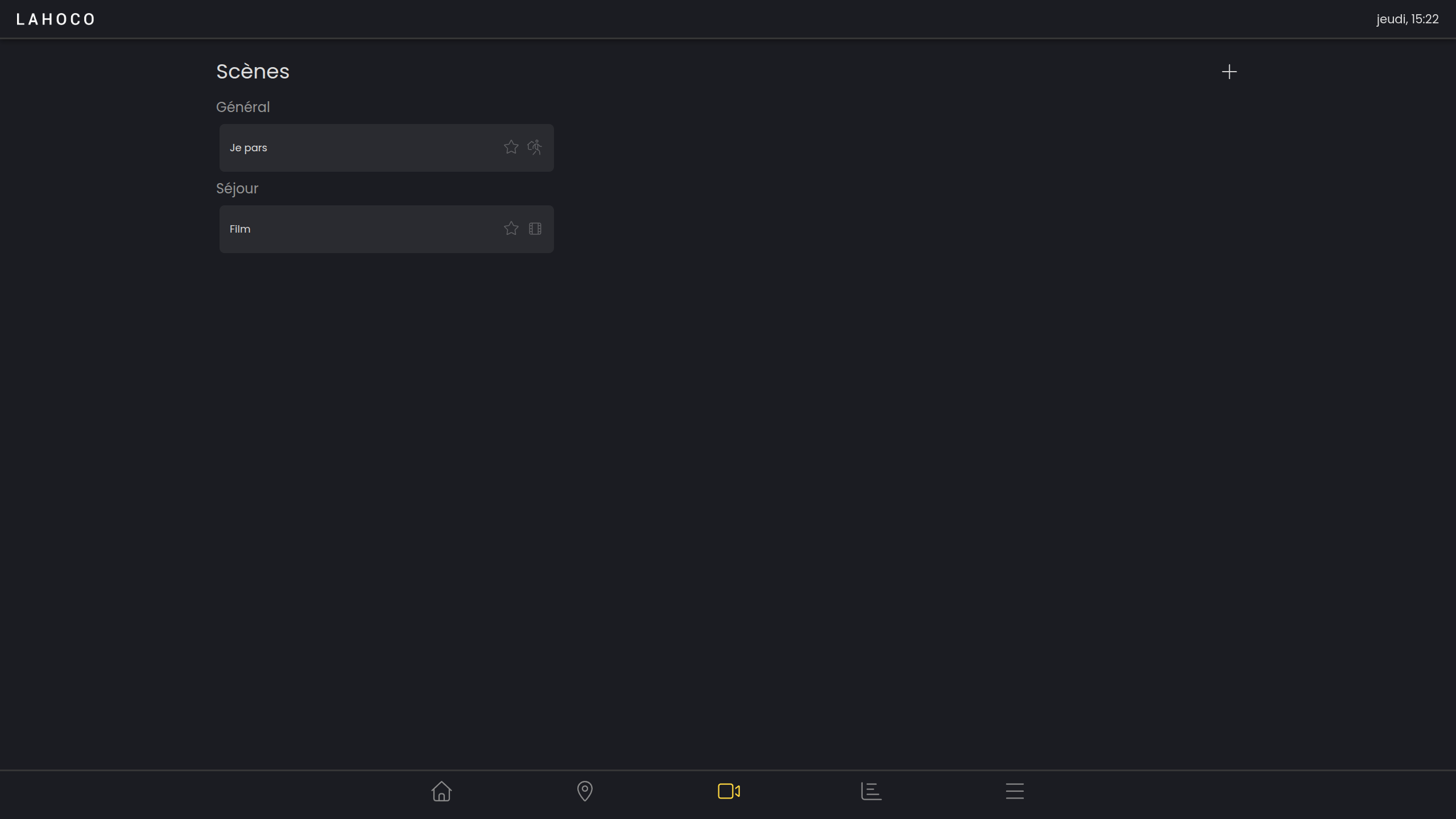
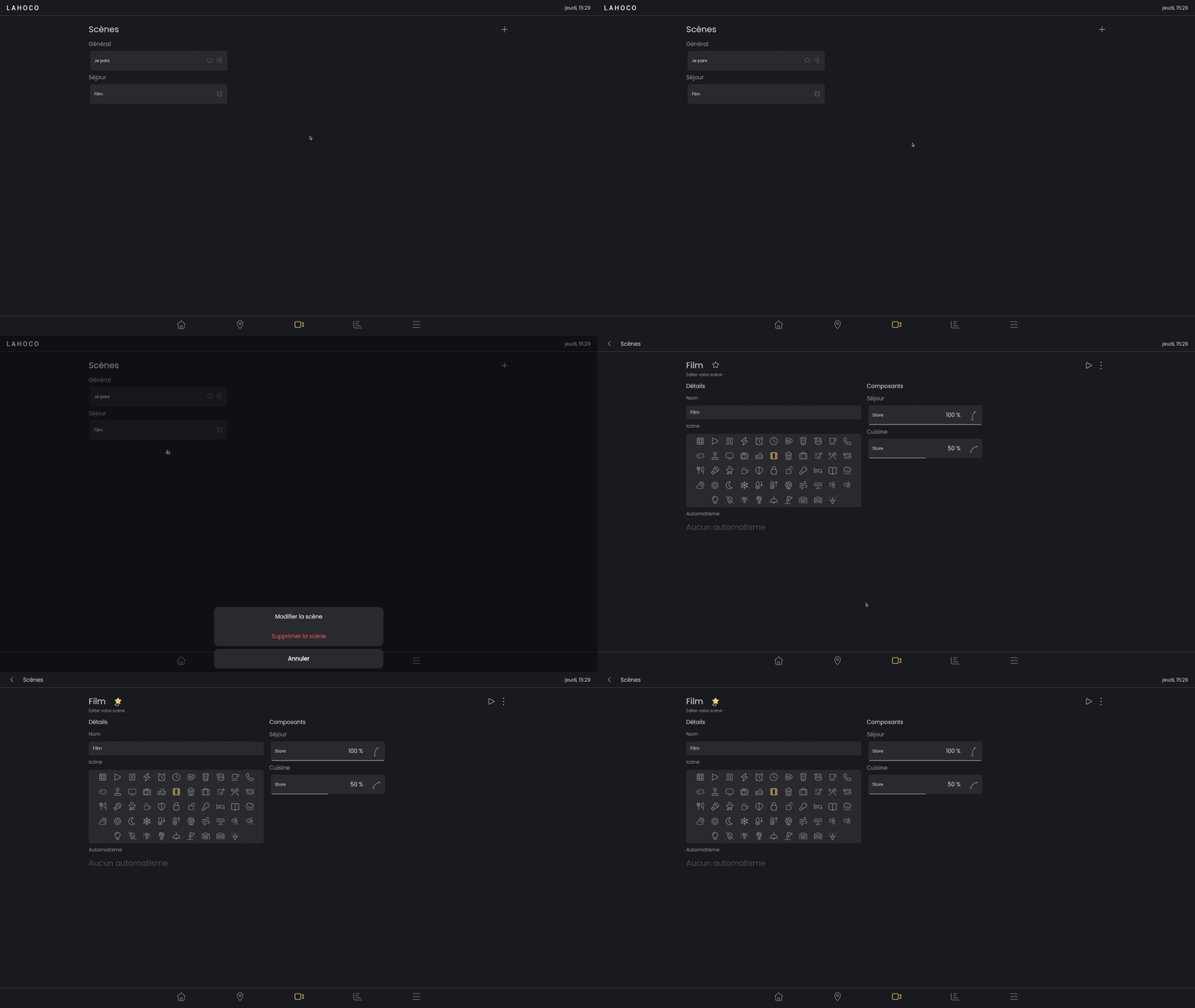
To add a scene, click on the “+” button located at the top right of the page.
Scene Configuration
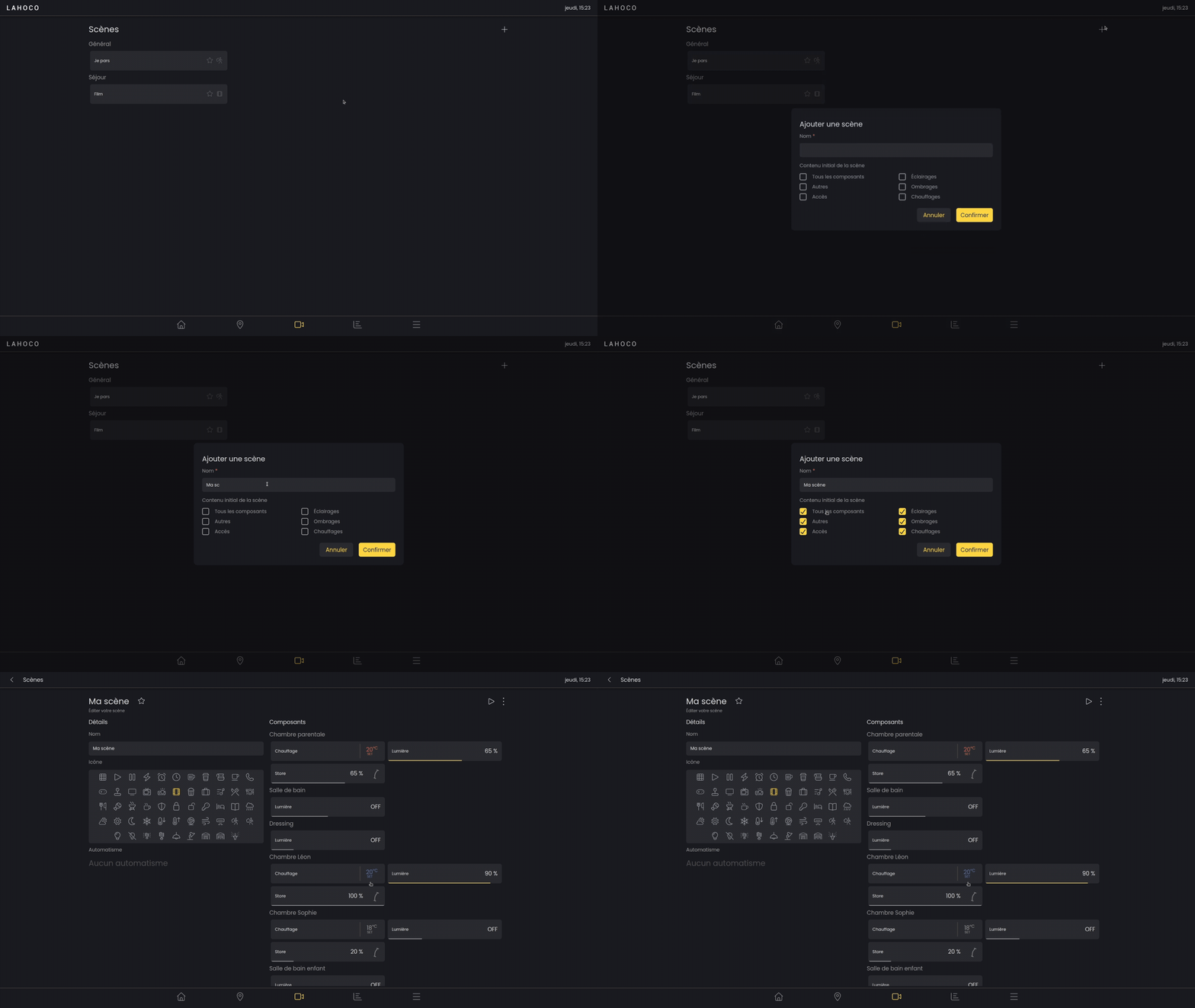
Once inside the new scene, or after a long press on the scene followed by clicking "Edit Scene," the scene enters configuration mode. As soon as a component is modified, its state is saved within the scene to be activated later.
Add to Favorites
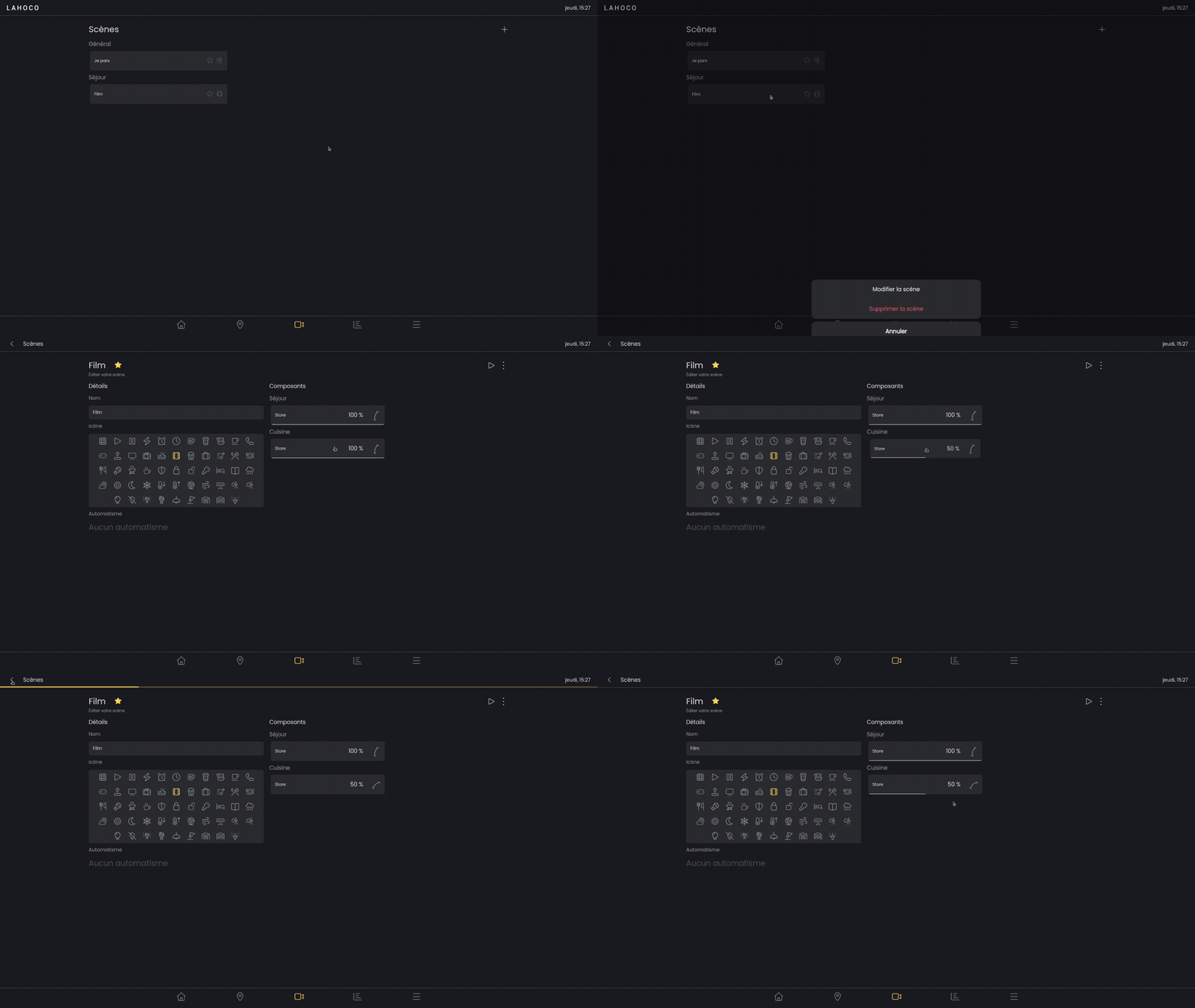
To add a scene as a favorite, go to the area, then click on the star located to the right of the name so that it turns yellow and is added as a favorite.
Here is an example of how to add a scene as a favorite:
Modifying Components
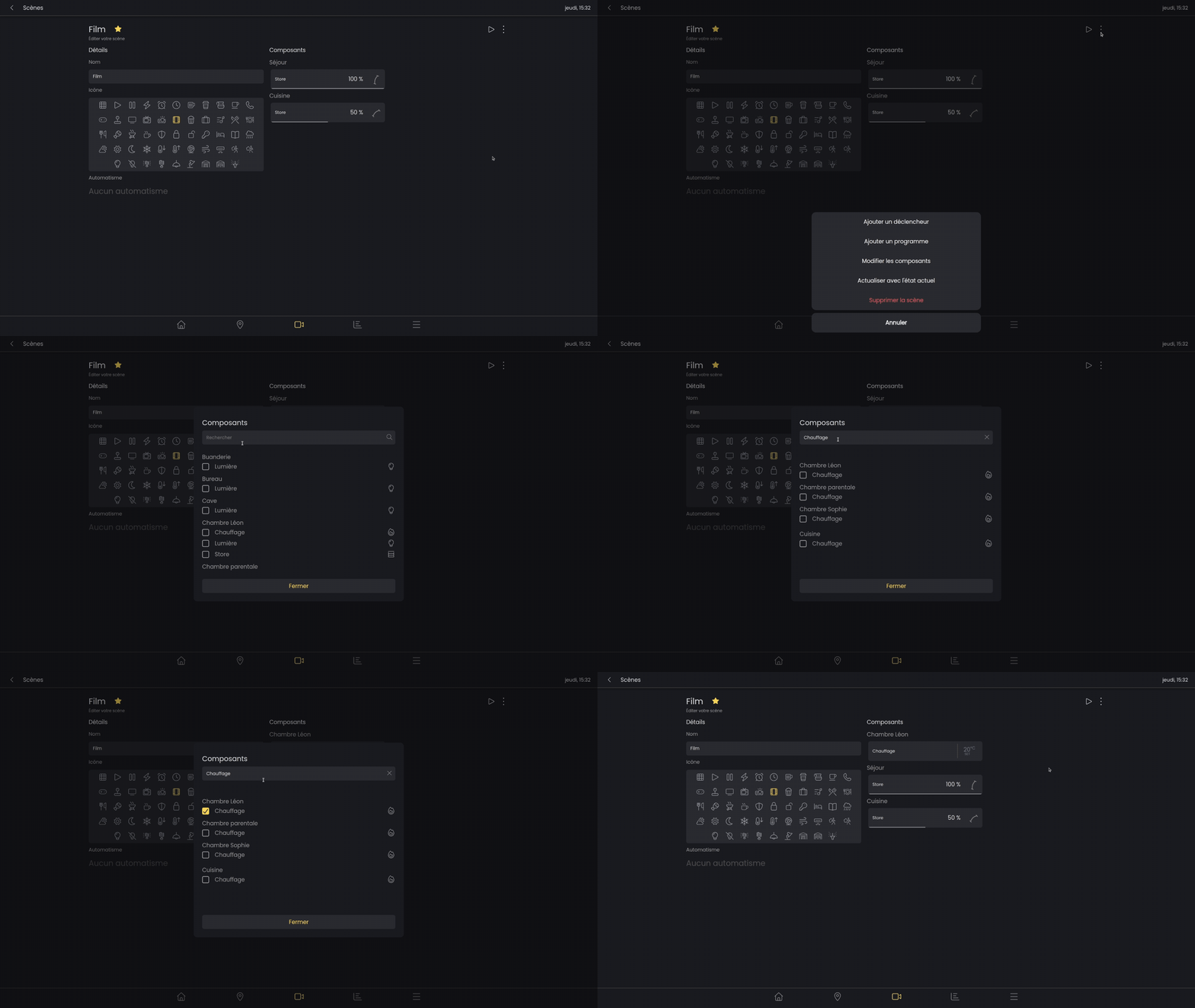
Adding or removing components from a scene is done through the options menu.
Automation
Automations allow scenes to be triggered automatically either by programs, alarms, or sensors.
The configuration of an automation for a scene is accessible on the scene configuration page (see section Scene Configuration).
Program
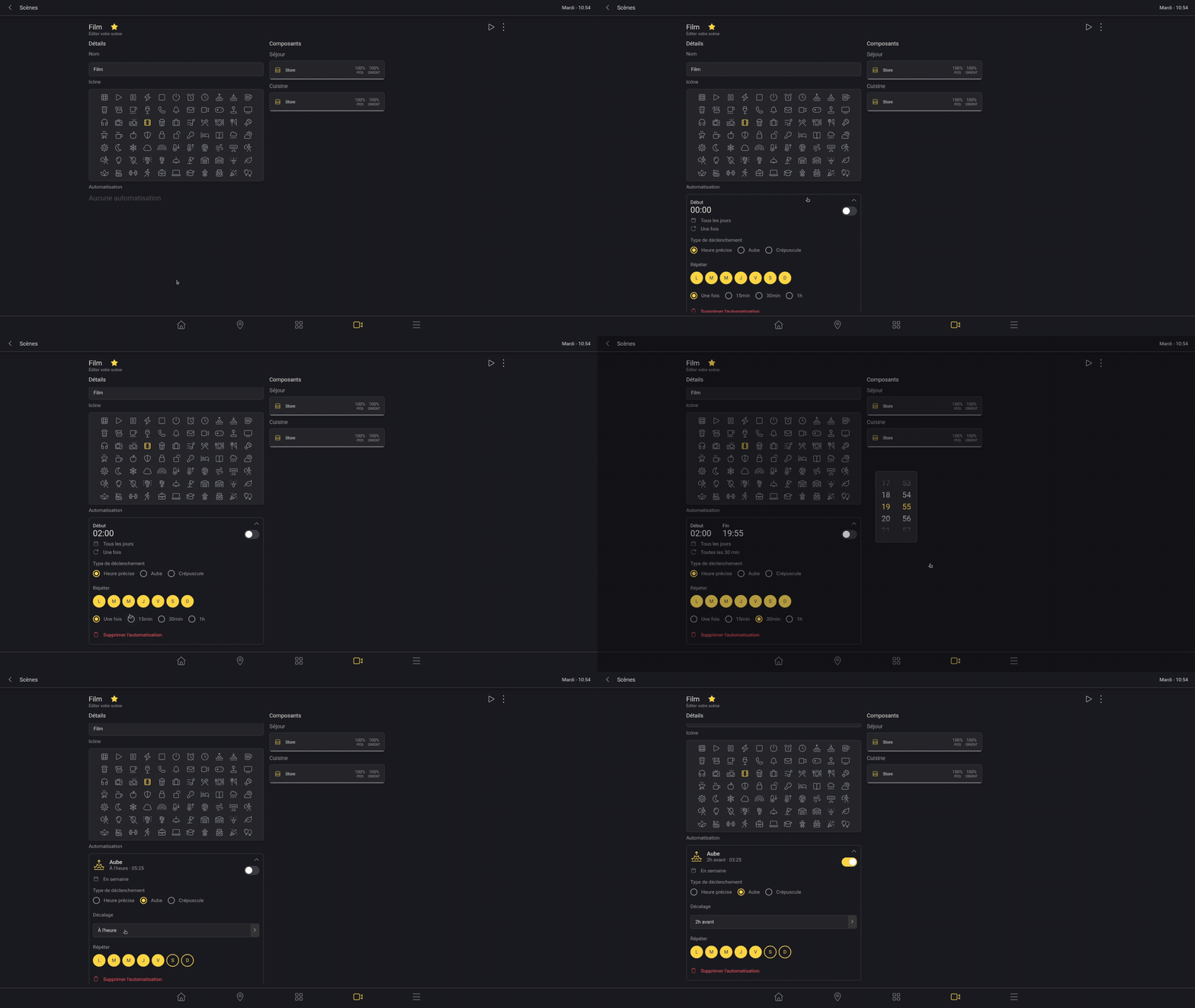
For programs, you can choose a trigger at a specific time or relative to dawn and dusk.
For a specific time, you can set the repetition interval as well as the start and end times.
For dawn and dusk, you can set an offset from 4 hours before to 4 hours after.
For each program, you can choose the days of the week on which it will repeat.
Alarm
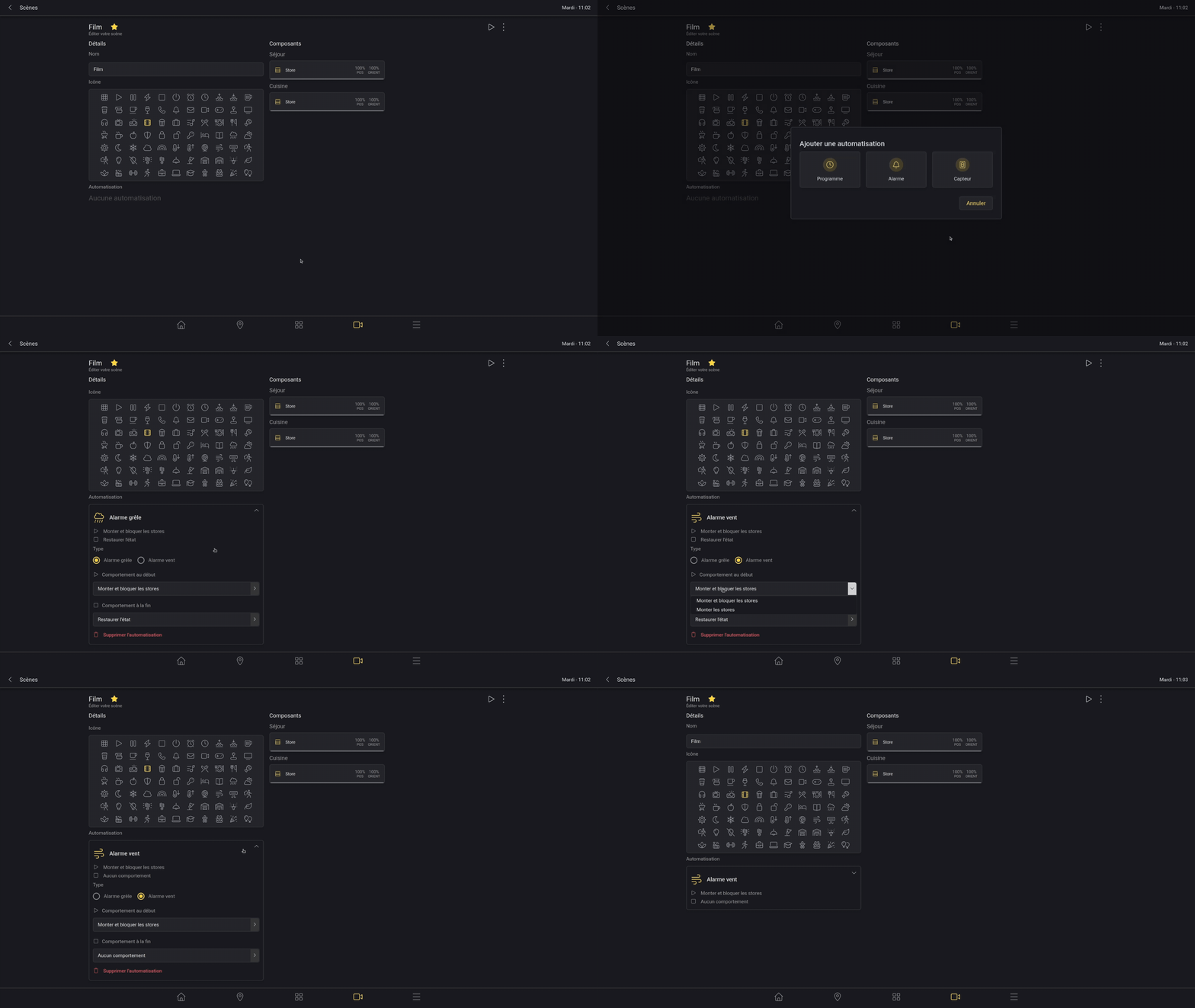
An alarm automation allows you to be warned of a hail or wind alarm.
All components of your scene will be automatically controlled during an alarm, according to the chosen behavior.
You can choose a behavior for the start and end of the alarm.
Sensor
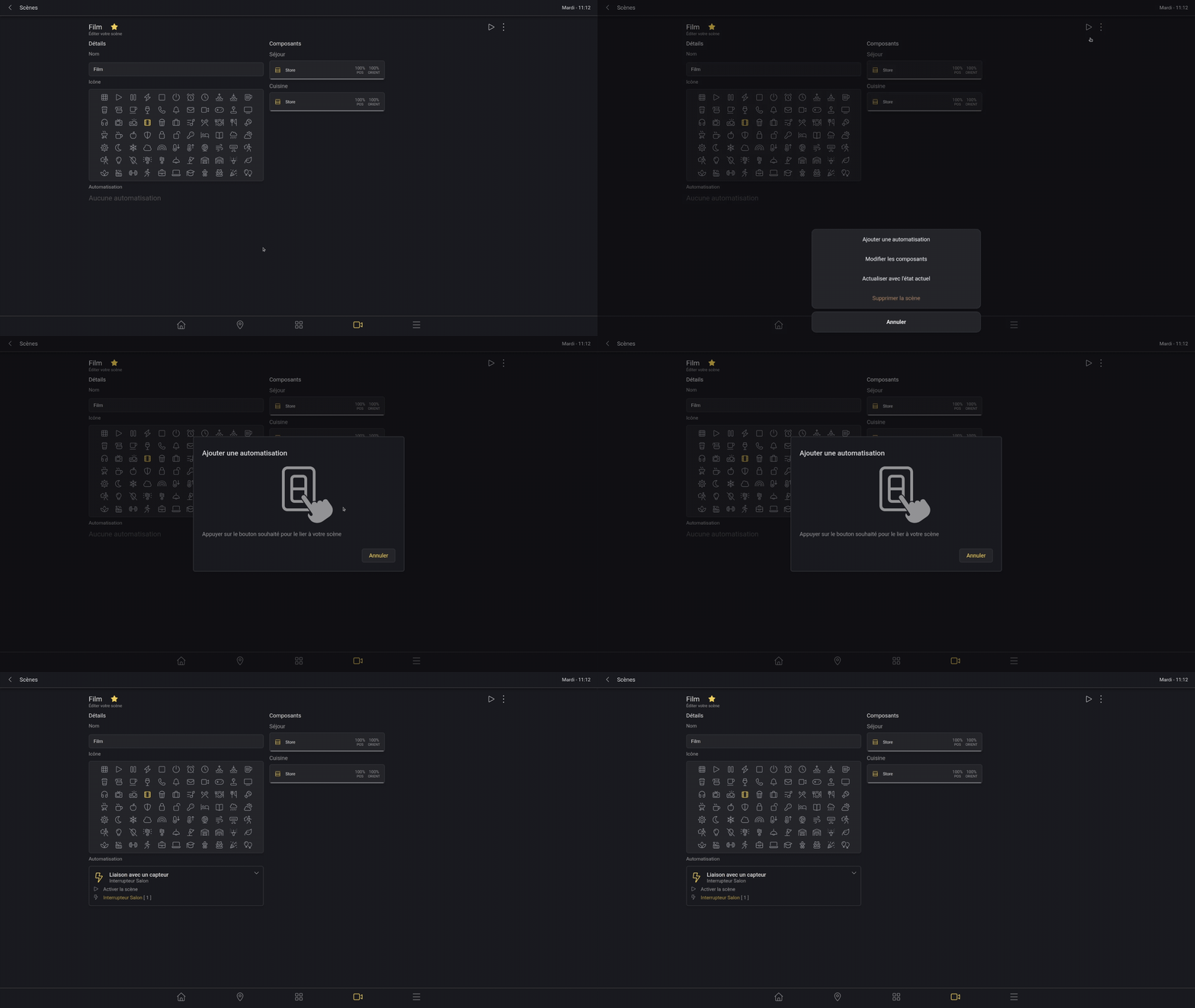
You can link a sensor (scene or switch) to activate a scene.
Simply click on the sensor to link it to the scene.
Refresh with current state
You can update an existing scene with the current state of your components.