How it works
Scenes offer significant convenience when it comes to controlling your home. With a single action, you can set lights and blinds to a predefined state, regardless of the zone they are in.
A scene can be activated from "Scenes", in the zone (if it is linked to a zone), or directly from the home page if the scene is defined as a favourite.
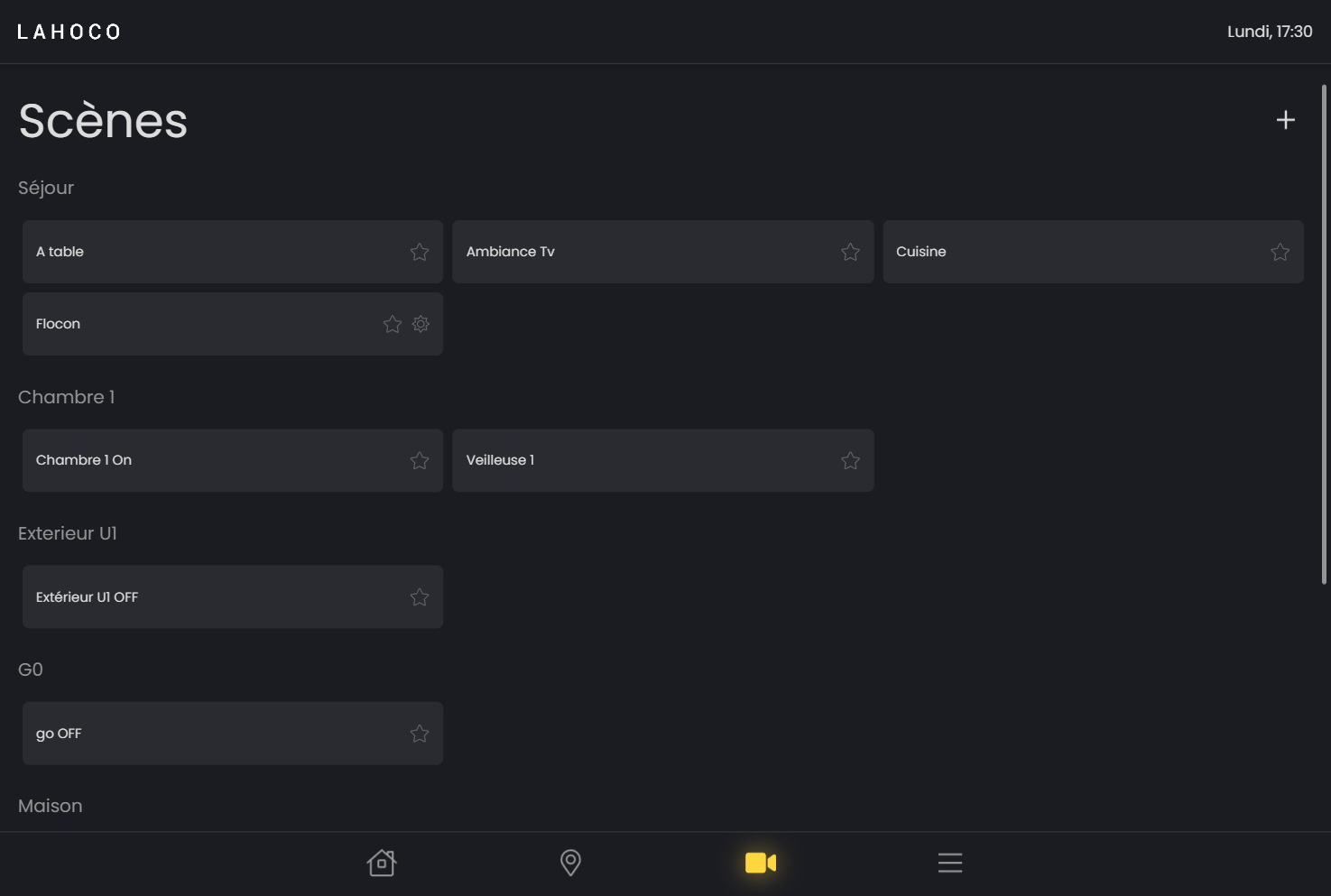
Creating a scene
To add a scene, simply click on the "+" button at the top right of the page.
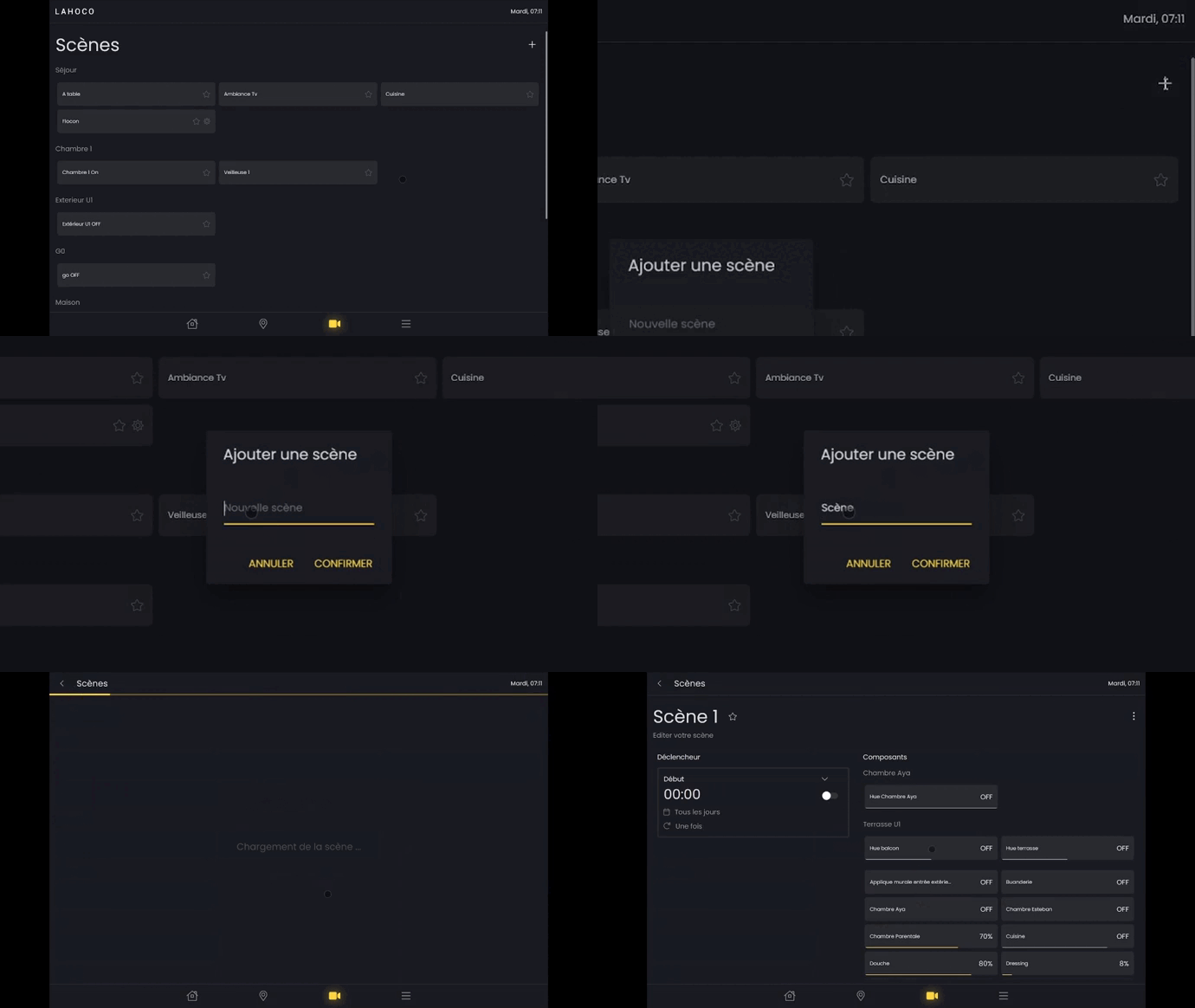
Scene configuration
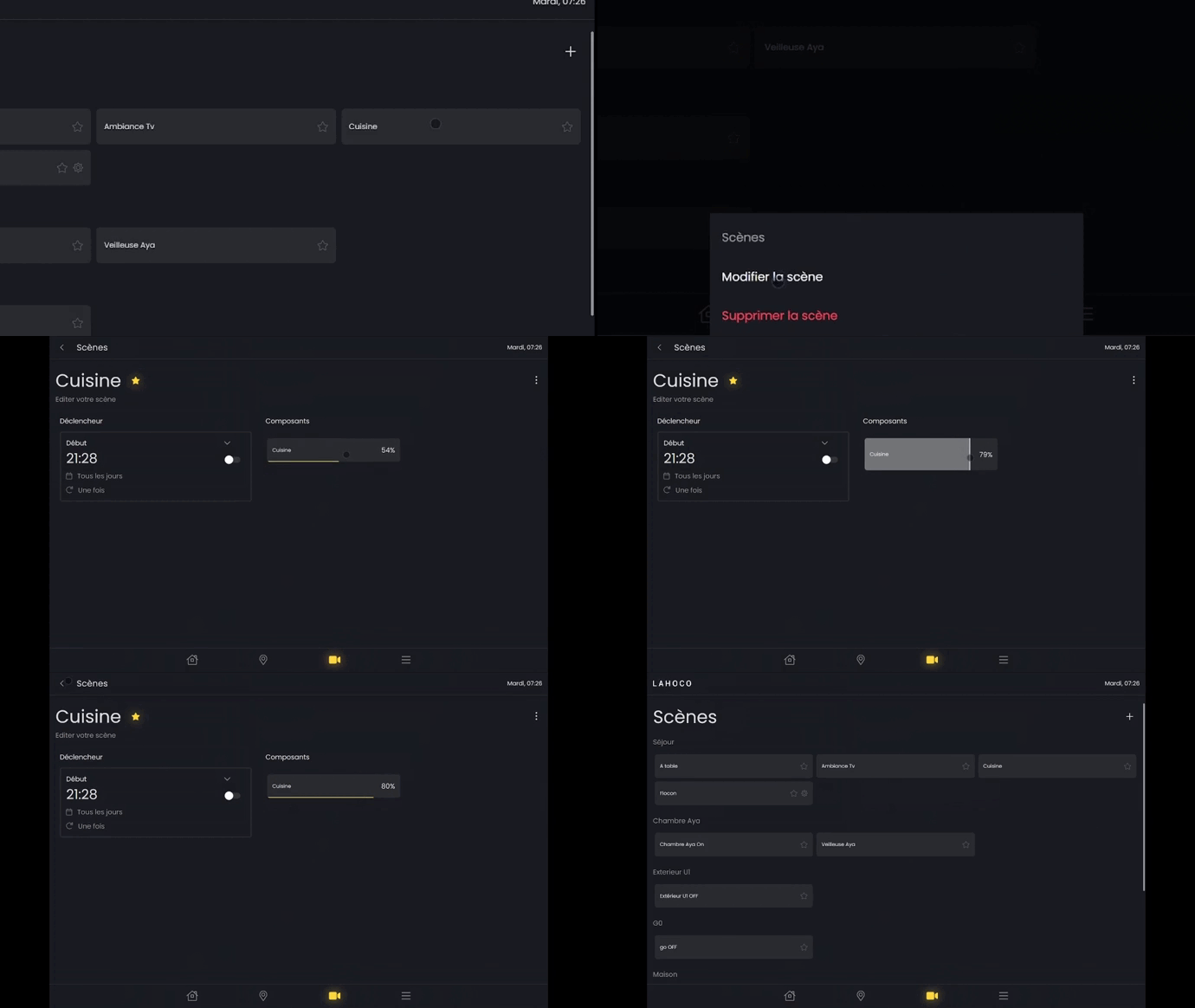
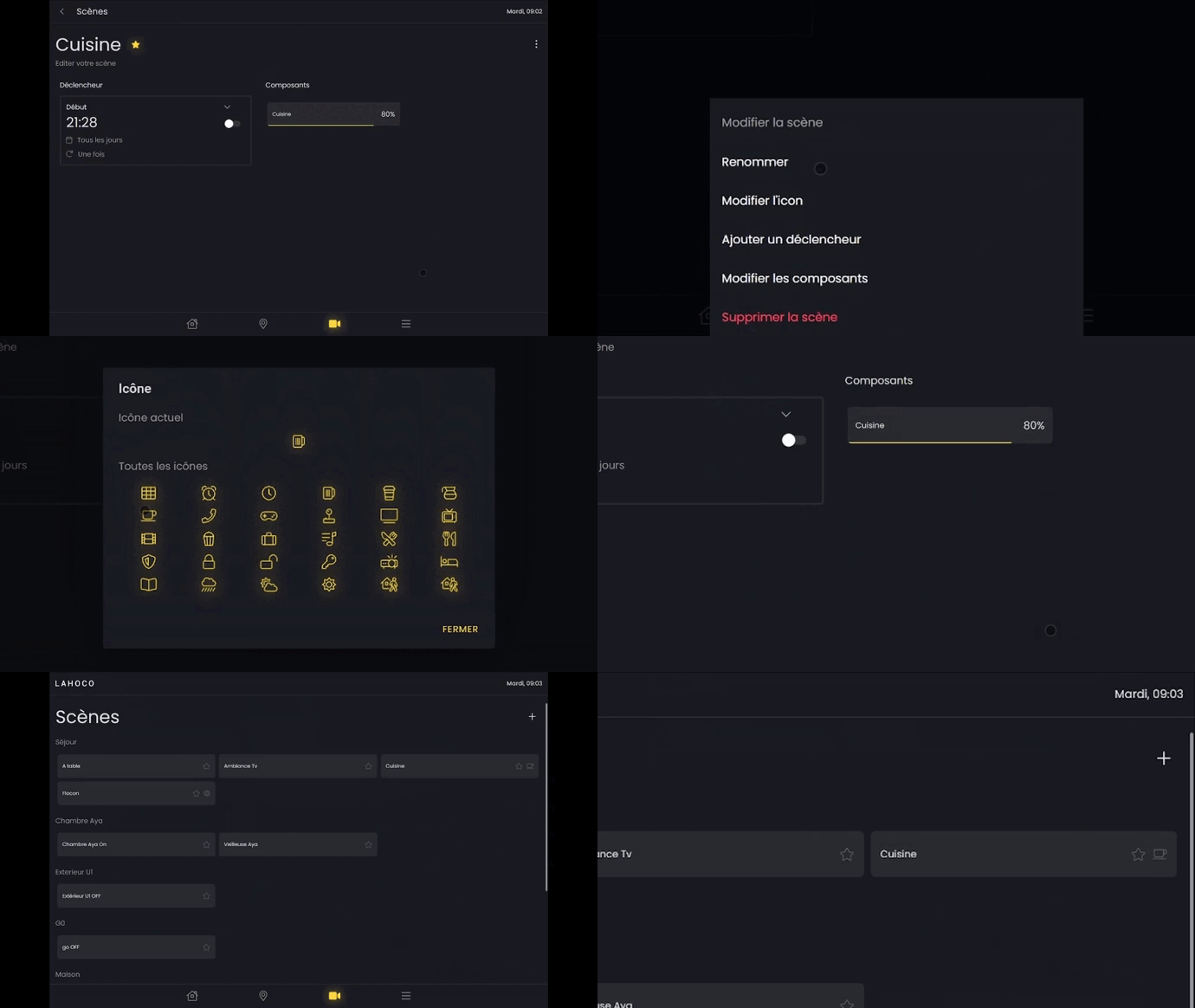
Once you have entered the scene, or after long-clicking on the scene and then clicking on "Modify scene", the scene goes into configuration mode. As soon as a component is modified, its state is saved in the scene so that it can be activated later.
Add a favourite
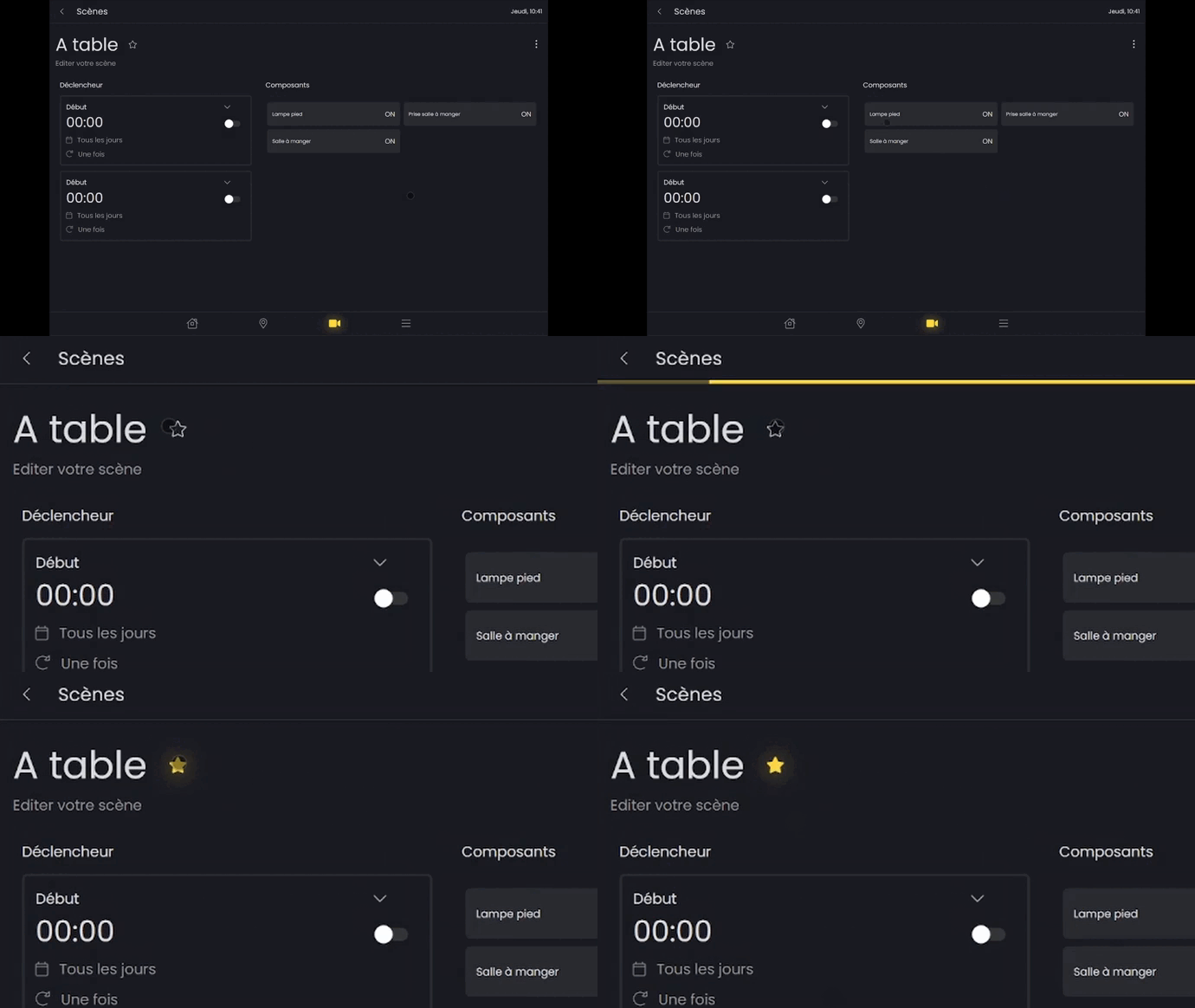
To add a scene, room or component as a favourite. Go to the room, scene or component you want. Then click on the star to the right of the name so that it is coloured yellow and added as a favourite.
Here's an example of how to add a scene as a favourite:
Modification of components
You can add or remove components from a scene using the options menu.
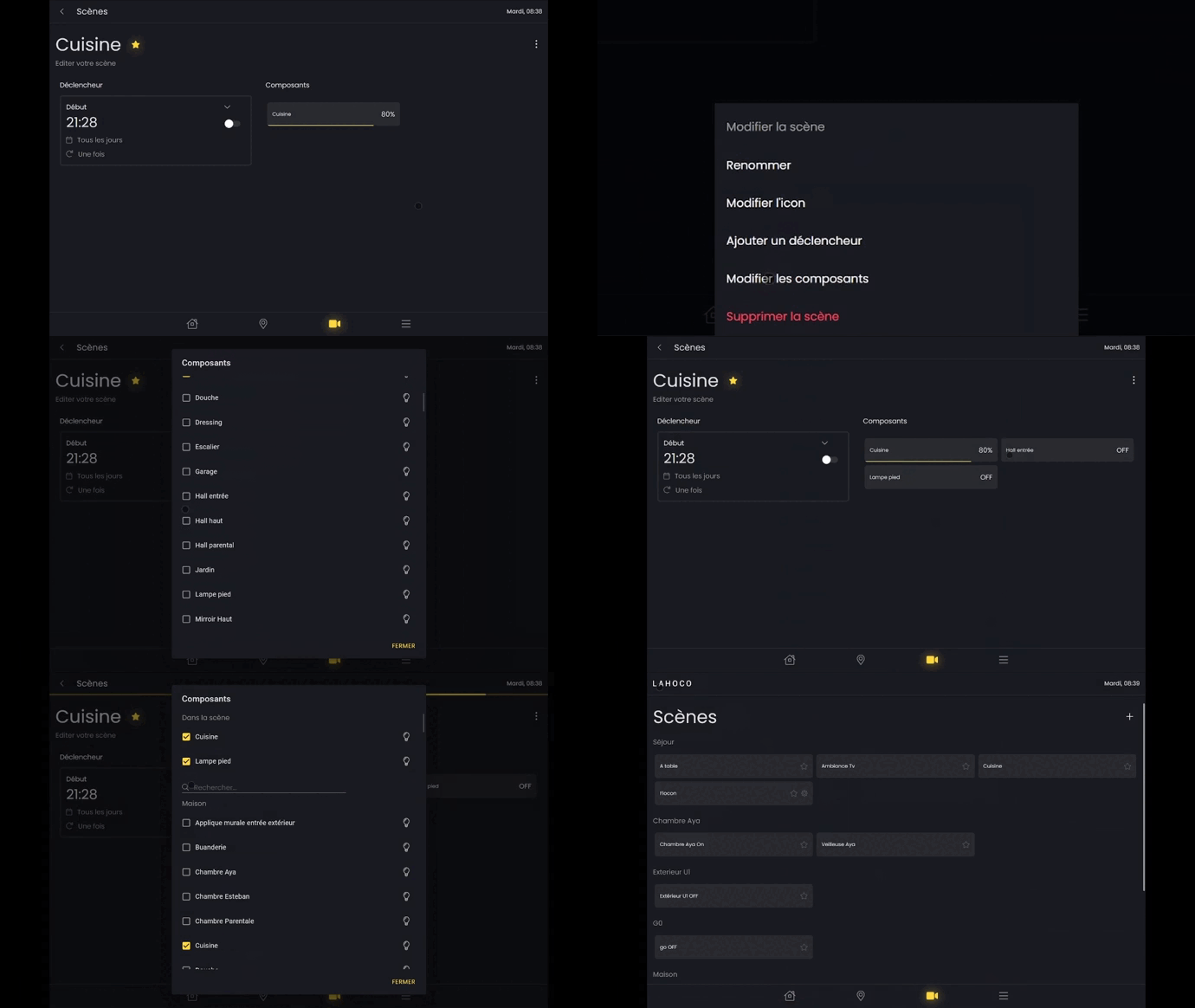
Scene customisation
You can customise the icon for a scene from the options menu.
Routines / triggers
Routines can be used to launch scenes automatically at set times on set days, using triggers.
You can configure a routine for a scene in the scene configuration page (see "Scene configuration").
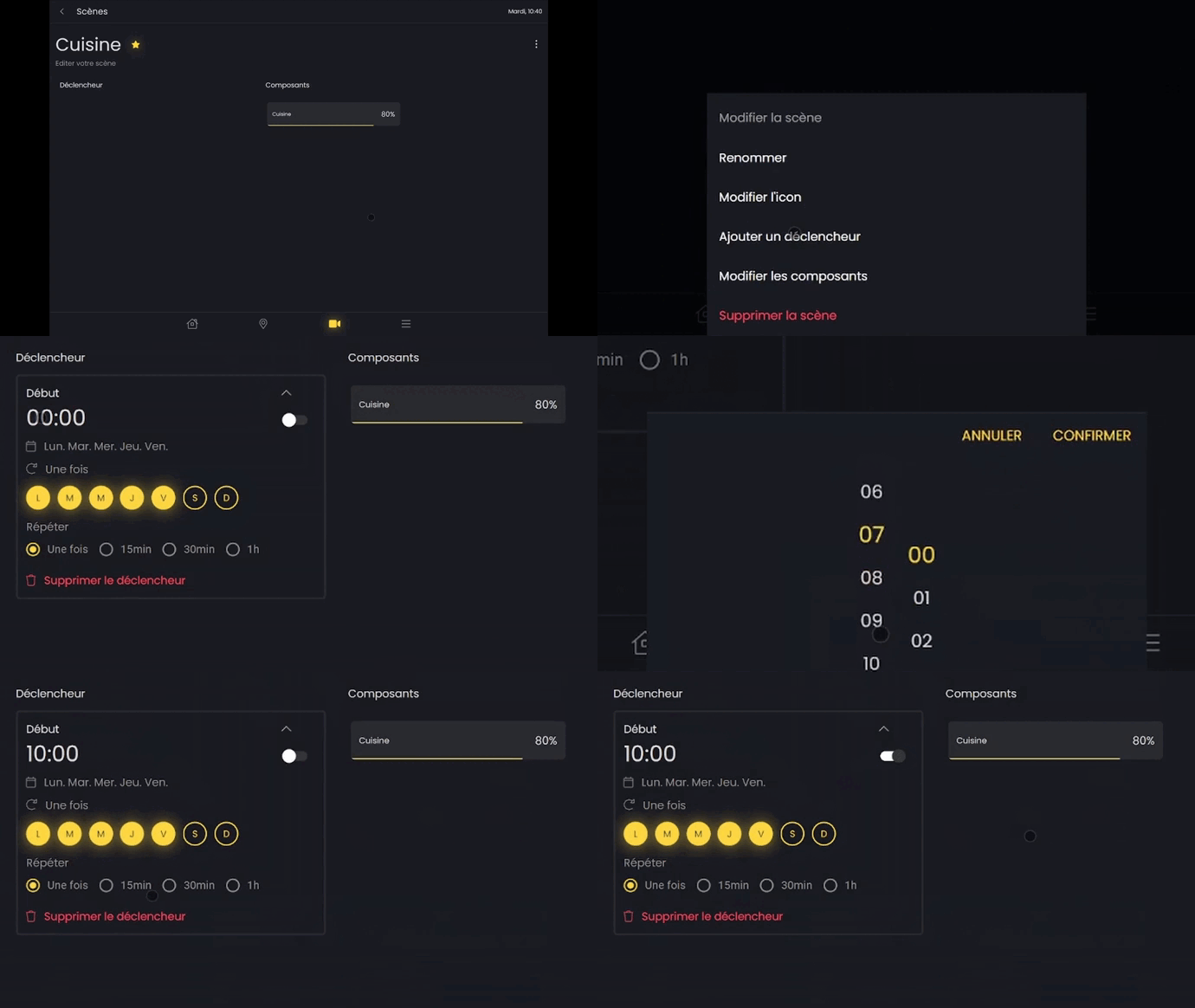
The following parameters can be configured:
-
Activating/deactivating the trigger
-
Choice of days
-
Choice of hours
-
Choice of repetitions
-
Removal
For example, activate the routine from Monday to Friday at 10am, and set the kitchen light to 80%: